How to Check Bandwidth Usage – A Guide to Managing Your Data
In Summary: To check bandwidth usage, you can use built-in operating system tools like Windows Activity Monitor or macOS Screen Time, log into your router’s web interface, or install third-party monitoring software. These methods allow you to track real-time consumption and identify data-hungry applications across your network.
Managing a home or office network effectively starts with knowing how to check bandwidth usage so you can avoid overage fees and optimize your connection speed. This guide covers everything from basic built-in tracking to advanced router-level monitoring. We will look at why your Netflix stream might be stuttering, how to catch “bandwidth vampires” in your house, and the best tools to keep your data in check without needing a degree in computer science.
The Essential Insights in This Guide
Before we dive into the technical steps, I want to highlight what we are going to solve today. You will learn how to pinpoint which specific devices are draining your speed, the difference between device-level and network-level tracking, and how to set automated alerts so you never hit a data cap unexpectedly. If you’ve ever wondered why your internet feels sluggish on a Tuesday night, the answers are just a few sections away.
Why You Need to Monitor Your Connection
In my experience, most people only look for ways to monitor their data once they receive a “90% of data used” notification from their ISP. By then, it is often too late to adjust habits. Tracking your usage helps you:
- Identify Background Syncing: Cloud backups and game updates often run silently.
- Detect Security Breaches: A sudden spike in upload data could indicate malware or an unauthorized user on your Wi-Fi.
- Validate ISP Claims: Sometimes the “Gigabit” speed you pay for isn’t what’s actually being delivered to your devices.
1. Using Built-in Tools on Windows and macOS
You don’t always need to download new software to get a clear picture of your data habits. Both Windows and macOS have evolved to provide decent native telemetry.
Windows 10 and 11
Windows makes it quite simple. I usually recommend people start here because it breaks down usage by specific application.
- Go to Settings > Network & Internet.
- Click on Data Usage.
- Here, you can see a breakdown of which apps (Chrome, Zoom, Steam) used the most data over the last 30 days.
macOS
Apple handles this through the Activity Monitor.
- Open Activity Monitor via Spotlight.
- Click the Network tab.
- At the bottom, you’ll see “Data received” and “Data sent” since the last system boot.
2. How to Check Bandwidth Usage at the Router Level
While checking your laptop is helpful, it doesn’t tell you what your Smart TV or your roommate’s phone is doing. To see the “Big Picture,” you have to go to the source: the router.
Most modern routers from brands like ASUS, TP-Link, or Netgear include a “Traffic Analyzer” or “Device List” section.
- Access your router: Type your Gateway IP (usually 192.168.1.1 or 192.168.0.1) into a browser.
- Log in: Use your admin credentials (usually found on a sticker on the router).
- Find the Stats: Look for tabs labeled “Status,” “Bandwidth Monitor,” or “Network Statistics.”
According to research by BroadbandNow, the average American household now consumes over 500GB of data per month, a number that has tripled in just a few years. Monitoring at the router level is the only way to stay ahead of this growing consumption.
3. Third-Party Software for Precision Tracking
If you need more than just a total number, third-party tools provide granular, real-time graphs. These are excellent for “power users” who want to see exactly when spikes occur.
| Tool Name | Best For | Platform | Key Feature |
| GlassWire | Visualizing spikes | Windows/Android | Beautiful graphs and security alerts |
| NetWorx | Speed testing | Windows/macOS | Exports usage reports to Excel |
| Little Snitch | Security-focused | macOS | Shows exactly where data is being sent globally |
4. Practical Examples and Common Mistakes
I often see users making the same few errors when they try to diagnose a slow connection.
The “Speed Test” Trap
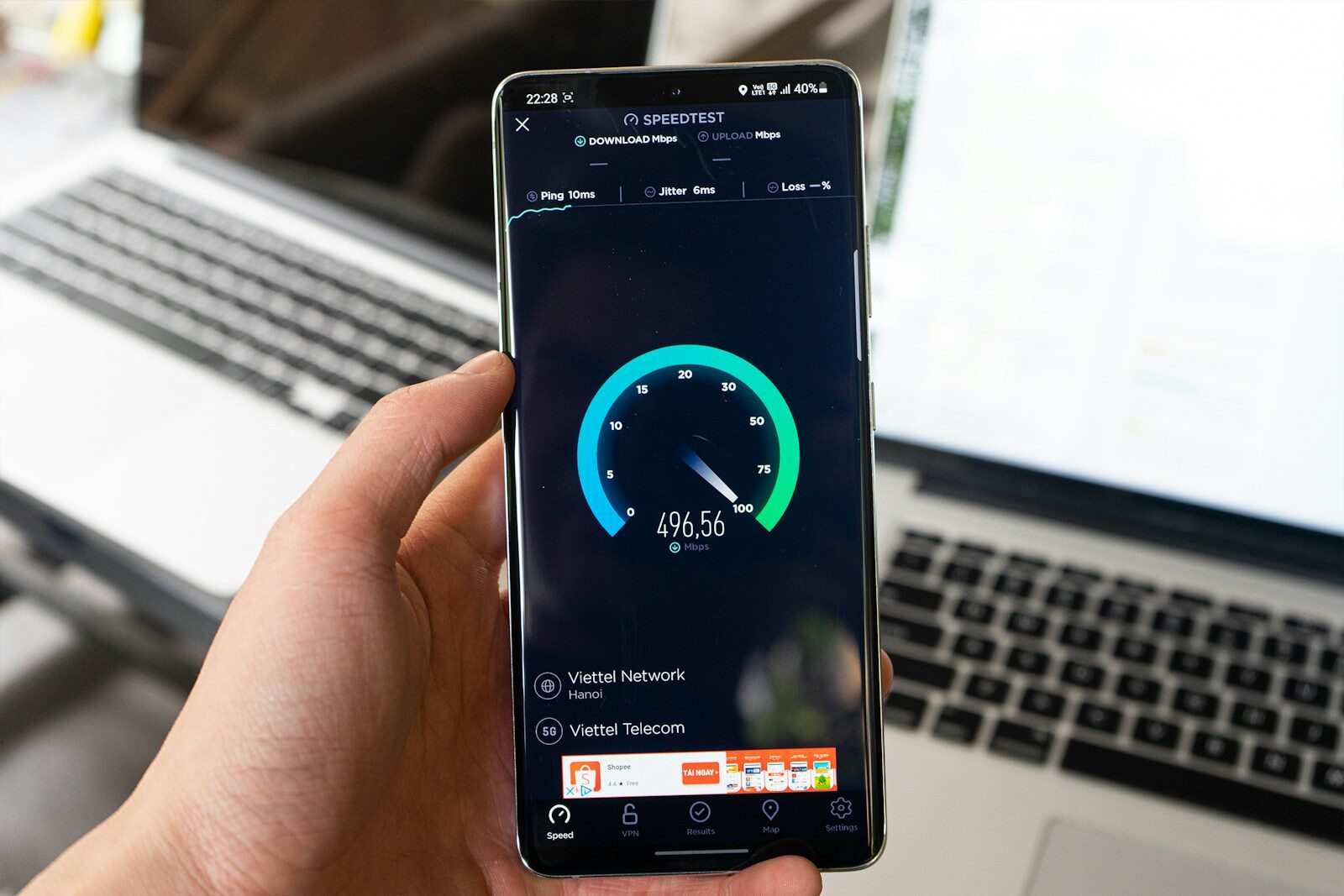
A common mistake is running a speed test and assuming that is your “usage.” A speed test measures capacity, not consumption. If you have a 100 Mbps line but your 4K stream is using 25 Mbps, your “usage” is 25%, not 100.
The Hidden Upload Spike
People focus on downloads, but high upload usage is often what “chokes” a home connection. If a computer is backing up a 50GB photo library to iCloud or Google Drive, it can make the entire network feel unresponsive for everyone else.
The “Ghost” Device
Always check the “Connected Devices” list in your router settings. I once helped a friend who couldn’t figure out their high usage, only to find a neighbor’s “Smart Sprinkler” had been hopped onto their guest Wi-Fi and was malfunctioning, constantly pinging a server.
5. Steps to Set a Data Limit
If you are on a metered connection, you should proactively cap your usage. Here is the standard workflow for Windows users:
- Open Network & Internet settings.
- Select Status then Data Usage.
- Click Enter Limit.
- Choose “Monthly” and enter the amount (e.g., 500 GB).
- Windows will now notify you when you approach the limit and can even restrict background data.
6. Pros and Cons of Different Monitoring Methods
Router Monitoring
- Pros: Captures every device (TVs, Consoles, IoT); more accurate for ISP billing.
- Cons: Can be a technical interface; some older routers don’t support it.
Device Software
- Pros: Very detailed; shows which specific app or website is the culprit.
- Cons: Must be installed on every device individually; won’t track guests.
7. Reducing Your Data Consumption
Once you know how to check bandwidth usage, the next logical step is lowering it.
- Lower Streaming Quality: Switching from 4K to 1080p reduces data use by roughly 60%.
- Disable Autoplay: Social media platforms like Facebook and YouTube can eat gigabytes of data just by scrolling.
- Schedule Updates: Set your Steam or PlayStation updates to occur between 2 AM and 6 AM if your ISP offers “unlimited” night hours.
As noted by Cisco’s Annual Internet Report, video traffic accounts for over 80% of all consumer internet traffic. Managing your video settings is the fastest way to see a drop in your monthly totals.
FAQ
Does checking bandwidth usage slow down my internet?
No. Most monitoring tools simply read the metadata already being processed by your network card or router. The resource overhead is negligible.
Can my ISP see exactly which websites I am visiting?
Yes, your ISP can see the domains you visit (e.g., google.com), though encryption (HTTPS) prevents them from seeing the specific content of the pages. Using a VPN can hide this information from them, but it won’t hide the amount of data you are using.
Why is my router showing more usage than my computer?
Your router tracks every device on the network, including your phone’s Wi-Fi, smart speakers, and system updates that might happen in the background. Your computer only tracks its own internal data.
Is there a way to see real-time bandwidth usage?
Yes, on Windows you can use the Performance tab in Task Manager (Ctrl+Shift+Esc). On macOS, the Activity Monitor’s Network tab updates every few seconds to show current KB/s or MB/s speeds.
How much data does a 1-hour Zoom call use?
On average, a high-quality 1:1 Zoom call uses about 600 MB to 1.2 GB per hour. Group calls use slightly more because of the multiple incoming video feeds.
What is the best way to catch someone stealing my Wi-Fi?
The most effective method is to log into your router and look at the “Client List” or “Attached Devices.” If you see a device name you don’t recognize, you should change your Wi-Fi password immediately.