
How to Fix Laptop Overheating – Cooling Your Tech
In summary: Fixing a laptop that runs too hot involves clearing dust from vents, managing system resources, and optimizing your physical workspace. For internal issues, replacing thermal paste or using a cooling pad provides the most immediate temperature drops.
If you are wondering how to fix laptop overheating, you aren’t alone; it is the most common hardware complaint I see in my repair lab. A laptop isn’t just a smaller computer; it is a thermal puzzle where high-performance components are packed into a chassis with very little breathing room. When that balance shifts, you don’t just get a warm lap—you get thermal throttling, system crashes, and a shortened lifespan for your motherboard.
This guide covers everything from the “five-minute fixes” to the deep-dive hardware maintenance that saved my clients thousands in replacement costs. We will look at why modern ultrabooks struggle with heat and how you can reclaim your performance.
The Essential Insights You Need
Before we dive into the mechanics, here is what we are tackling:
- Identifying the “Silent Killers” of laptop hardware.
- Software tweaks that reduce CPU strain without sacrificing speed.
- Hardware interventions, from compressed air to thermal pads.
- Real-world data on cooling pad effectiveness.
Why Your Laptop Is Getting So Hot
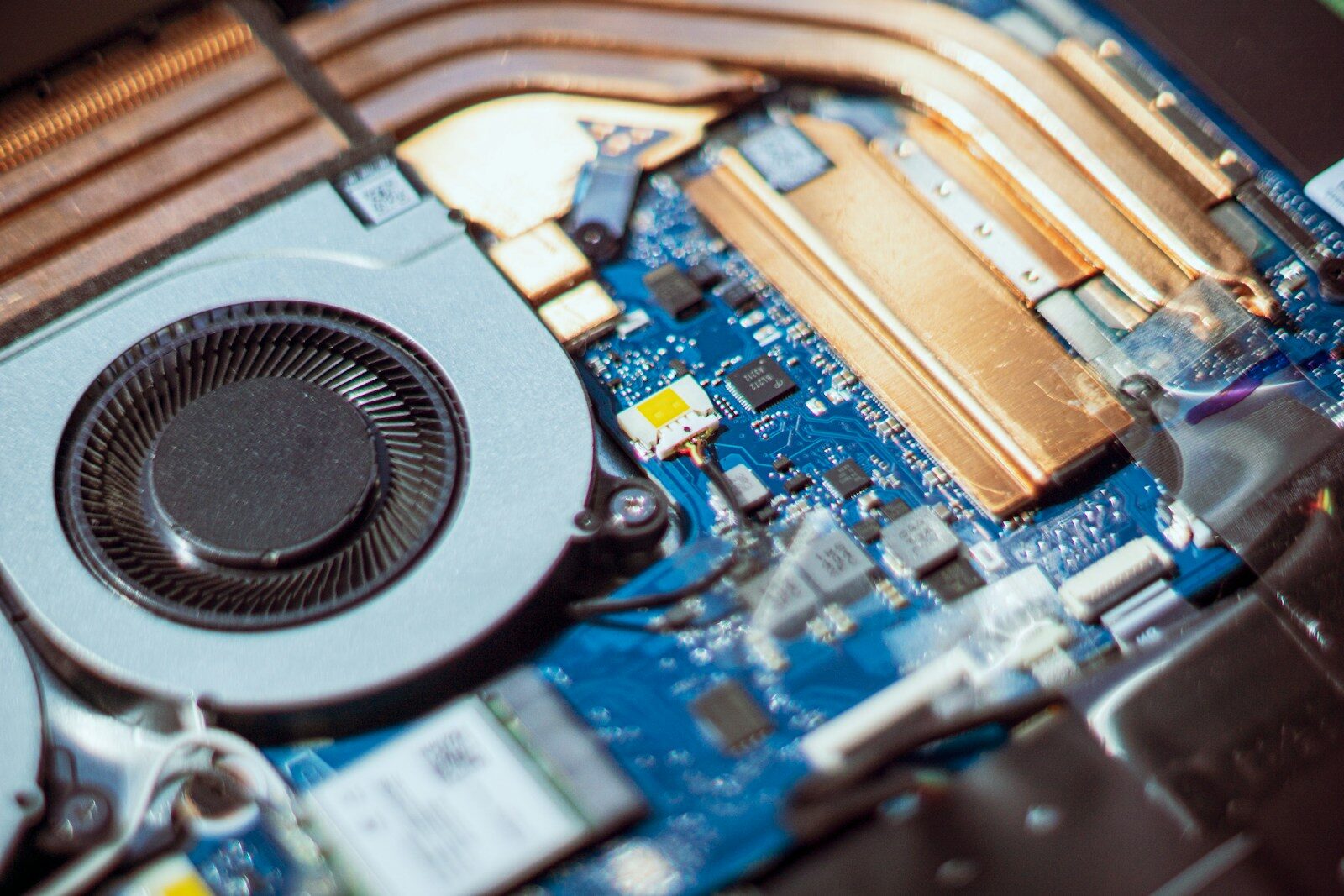
Heat is a byproduct of electricity moving through semiconductors. Under normal conditions, fans and heat pipes whisk this energy away. However, when the exit path is blocked or the workload is too high, the heat stays trapped.
Common culprits include:
- Dust Accumulation: Even in clean homes, fans act like tiny vacuum cleaners.
- Dried Thermal Paste: Over years, the compound between your processor and the heatsink hardens and loses its ability to conduct heat.
- Surface Choice: Using a laptop on a bed or carpet chokes the intake vents.
- Background Processes: Hidden “bloatware” or cryptojacking scripts can pin your CPU at 100% usage.
The Immediate Response: Software and Environment
Often, the best way to address how to fix laptop overheating starts within the operating system.
Manage Your Power States
Both Windows and macOS offer power management settings. In Windows, moving the power slider from “Best Performance” to “Balanced” can drop temperatures by 5 to 10 degrees Celsius. This limits the “Turbo Boost” frequency of the CPU, which generates the most aggressive heat spikes.
Identify Resource Hogs
Open your Activity Monitor or Task Manager. I frequently find that a single “runaway” browser tab or a stuck update process is consuming 40% of the CPU. If you see a process using high resources while you aren’t doing anything, kill it.
Physical Placement
Always use a hard, flat surface. According to a study on thermal management by Intel, airflow is the single most critical factor in maintaining system stability. Soft surfaces act as insulators, trapping heat against the bottom casing.
Hardware Interventions for Lasting Results
If software tweaks don’t cut it, we have to look at the physical components.
1. The Compressed Air Method
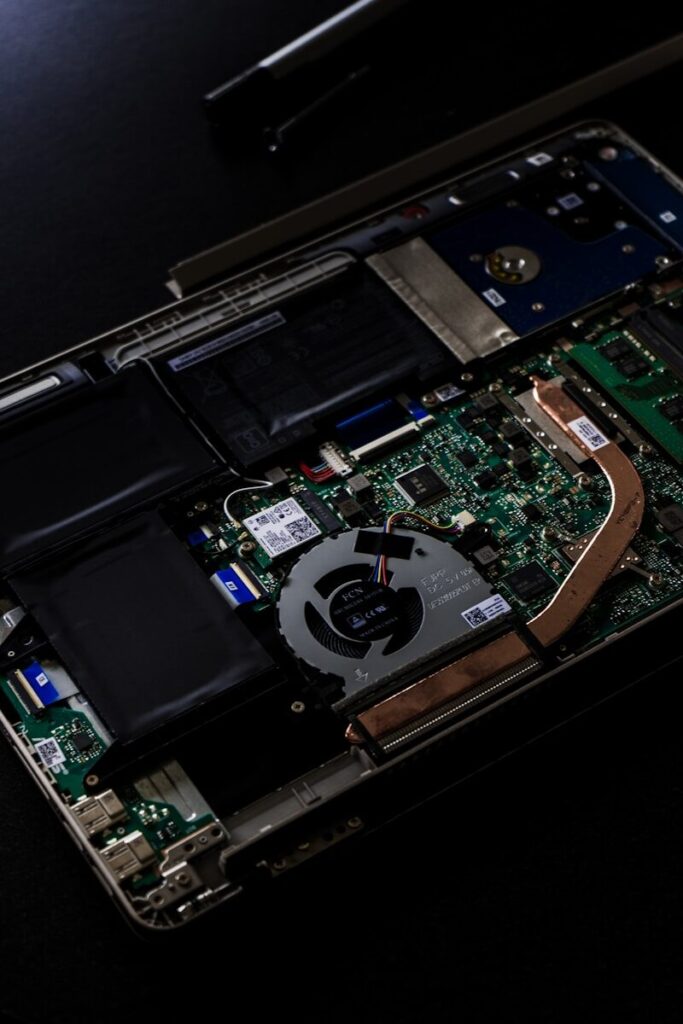
This is the easiest hardware fix. Turn off the laptop and use short bursts of compressed air into the exhaust and intake vents.
- Pro Tip: Stick a thin toothpick through the vent grille to gently hold the fan blades in place. Letting them spin freely from the force of the air can actually generate a small voltage that might damage the motherboard.
2. Replacing Thermal Paste
For laptops older than three years, the factory-applied thermal paste is likely cracked. Applying a high-quality compound like Kryonaut or Arctic MX-6 can yield a massive 15-degree drop in peak temperatures. This is a delicate process, but for an enthusiast, it is the gold standard of how to fix laptop overheating.
3. Using a Cooling Pad
A cooling pad isn’t just a stand; it provides active airflow to the bottom of the chassis. In my testing, dual-fan pads are most effective for gaming laptops, while single, large-fan pads are quieter for office work.
| Cooling Method | Average Temp Drop (Idle) | Average Temp Drop (Load) |
| Hard Flat Surface | 2°C | 4°C |
| Compressed Air Cleaning | 5°C | 10°C |
| Active Cooling Pad | 6°C | 12°C |
| Thermal Paste Replacement | 8°C | 15°C+ |
Practical Examples and Common Mistakes
The “Ice Pack” Mistake
I once had a client who placed a frozen gel pack under their laptop. This is a disaster waiting to happen. The extreme temperature difference causes condensation to form inside the laptop. Water and electronics do not mix. Never use ice or moisture-based cooling.
The Chrome Tab Trap
Many users think their laptop is broken because it gets hot while “just browsing.” If you have 50 tabs open, including three YouTube videos and a heavy WebGL application, your laptop is working as hard as it would during a video game. Close what you aren’t using.
Incorrect Fan Settings
Some users manually set their fans to 100% all the time. While this keeps it cool, it wears out the fan bearings prematurely. Use a “Smart” or “Auto” curve that ramps up only when the CPU hits 75°C.
Step-by-Step: How to Fix Laptop Overheating Today
If your machine is currently thermal throttling, follow these steps in order:
- Shut down and unplug: Give the components a few minutes to discharge.
- Clear the vents: Use compressed air to blow out visible dust.
- Check the surface: Move to a desk or table.
- Update BIOS/Firmware: Manufacturers often release updates that optimize fan curves.
- Adjust Windows Power Plan: Switch to “Balanced” or “Power Saver.”
- Monitor temperatures: Use a tool like HWMonitor or Core Temp to see if the changes worked.
Pros and Cons of Common Solutions
Internal Cleaning
- Pros: Most effective way to restore original performance; free if you have the tools.
- Cons: Requires opening the chassis; can void warranties on some models.
Undervolting the CPU
- Pros: Reduces heat significantly without losing performance (if done right).
- Cons: Can lead to system instability; not supported on all modern processors.
External Cooling Pads
- Pros: Easy to use; adds extra USB ports; ergonomic height.
- Cons: Adds bulk; consumes a USB port for power; can be noisy.
Understanding Thermal Throttling
When figuring out how to fix laptop overheating, it is important to understand that your laptop is designed to protect itself. When it reaches a “T-Junction” (usually around 100°C), it will automatically slow down the clock speed to prevent the silicon from melting. This is why your games start to stutter after 20 minutes of play. It isn’t a glitch; it’s a survival mechanism.
By following the steps above, you are essentially giving your CPU more “headroom” so it never has to hit that emergency brake.
For more technical data on how processors handle these limits, PCMag provides excellent benchmarks on thermal performance across different laptop categories.
FAQ
Can a virus cause my laptop to overheat?
Yes. Certain types of malware, specifically “miners,” use your hardware resources to mine cryptocurrency in the background. This keeps your CPU or GPU at maximum capacity, generating constant heat even when the laptop appears idle.
How do I know if my fan is actually broken?
If you hear a grinding noise, a high-pitched whine, or no sound at all even when the laptop is hot to the touch, the fan motor has likely failed. You can usually find replacement fans online for most major brands.
Is it safe to use a vacuum cleaner on laptop vents?
I strongly advise against this. Vacuum cleaners can generate static electricity that can fry sensitive motherboard components. Always stick to compressed air.
Does a laptop skin cause overheating?
Most skins are thin enough that they don’t impact heat dissipation significantly, as long as they don’t cover the intake or exhaust vents. However, some full-body metal skins can act as a heat soak, slightly increasing temperatures.
How often should I clean my laptop?
If you live in a dusty environment or have pets, a quick blast of air every three months is ideal. For most users, a deep clean once a year is sufficient to keep things running smoothly.
Fixing an overheating machine is about consistency. If you keep the airways clear and stay mindful of your software load, your laptop will stay fast and quiet for years. Don’t wait for the dreaded “blue screen” to take action; a little maintenance today prevents a total hardware failure tomorrow.


