Best Ad Blockers for iPhone 17 in 2026
Best Ad Blockers for iPhone 17 in 2026: What Actually Works on iOS
iOS plays by different rules than Android or your laptop. Here’s exactly what ad blocking can and can’t do on iPhone 17, and which tools make the most of what Apple allows.
Where ad blocking actually works on iOS 19
- Safari. Fully blockable
- DNS-level (all apps). Partially effective
- Native apps & games. Not blockable
Got a shiny new iPhone 17 and want to finally browse without ads getting in the way? Good news: it’s very doable. But the best ad blockers for iPhone 17 work within a completely different rulebook than what you might know from Android or desktop Chrome. iOS is a closed system by design, and Apple decides exactly what an ad blocker is allowed to touch.
The honest version is this: ad blocking in Safari works beautifully on iOS 19. Ad blocking inside apps and games is a different story entirely, and no app on the App Store can fully solve it. This guide explains both halves clearly, with no hype, so you know exactly what to expect before you download anything.
How Ad Blocking Works on iPhone — And What Apple Won’t Let You Do
Every iOS ad blocker that works in Safari uses Apple’s Content Blocker API. The mechanism is worth understanding because it explains both the strength and the limits of iOS ad blocker Safari tools. Rather than an extension reading your traffic directly, it submits a list of blocking rules to Safari itself. Safari applies those rules natively, and the extension never actually sees the pages you visit or the data flowing through them. It’s a privacy-by-design model, and it’s actually a meaningful advantage over how browser extensions work on Windows or Android.
This is also why ad blocking on iPhone differs so sharply from Android. There are no true system-wide VPN ad blockers in the App Store, because Apple’s guidelines prohibit apps from filtering all device traffic unless they’re a genuine VPN built for privacy or security, not ad blocking specifically. A few tools work around this using legitimate DNS configuration, which we’ll cover, but nothing on iOS matches the full-traffic interception that Android VPN-based blockers offer.
One detail surprises a lot of new iPhone users: Chrome, Firefox, and Opera on iOS are not actually using their own rendering engines. Apple requires every browser on iOS to run on WebKit, Safari’s engine. That means Content Blocker rules effectively apply across all of them, even though each browser has its own settings menu for enabling extensions.
What can’t be blocked?
Ads inside native apps, like games, the YouTube app, Instagram, or TikTok, are completely outside Safari’s reach. Apple’s sandboxing model keeps every app isolated, and Content Blockers only have authority inside Safari. The practical workaround, where it exists, is using a website version of a service inside Safari instead of its native app.
What to Look For in an iPhone Ad Blocker
Because every iOS tool operates inside the same Apple-imposed boundaries, the differences between them come down to execution quality, not architecture tricks. Here’s what actually separates a good ad blocker iPhone 2026 option from a mediocre one:
- Filter list quality. Larger, more frequently updated rule sets catch more ad servers and fewer false positives.
- DNS filtering option. Tools that pair Safari blocking with optional DNS filtering reach slightly beyond the browser.
- YouTube in Safari. The single most requested feature. Some tools handle it well, others barely touch it.
- Tracker protection. Blocking fingerprinting scripts and trackers, not just visible ads.
- Private Relay compatibility. Should work alongside iCloud Private Relay without conflicts.
- Performance impact. Content Blockers should be lightweight; a poorly optimized rule set can slow page loads.
- Update frequency. Ad networks rotate domains constantly. Stale filter lists lose effectiveness fast.
- Pricing transparency. Several iOS blockers use aggressive subscription pricing. Look for clear, upfront terms.
Best Ad Blockers for iPhone 17 — Full Reviews
AdLock for iOS
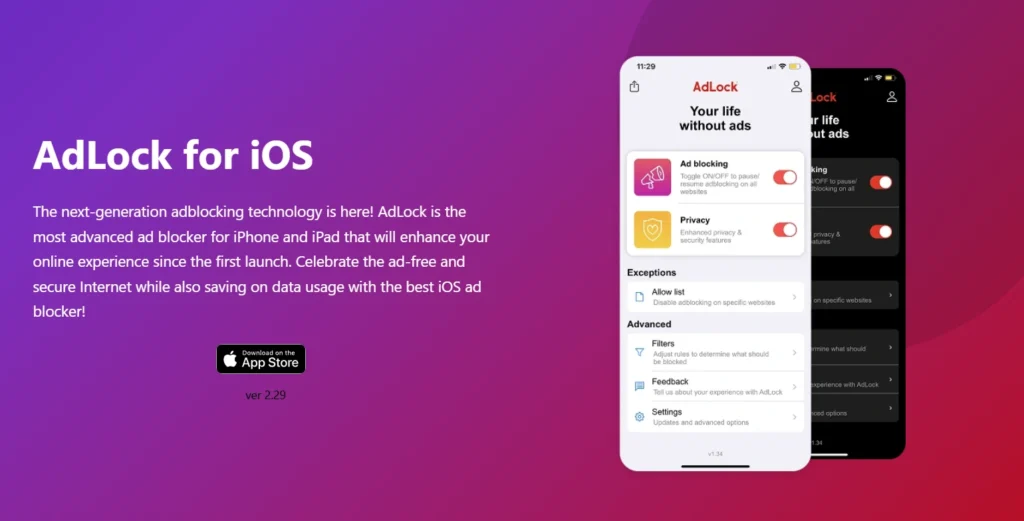
AdLock iOS combines Safari’s Content Blocker API with encrypted DNS-level filtering, giving it the broadest practical coverage available within Apple’s rules. The Safari component handles standard ad and tracker blocking on web pages. The DNS layer adds a second pass that catches some ad server requests originating from apps, within the limits Apple permits for legitimate DNS configuration.
The combination doesn’t break Apple’s sandbox model, and it doesn’t pretend to be a full VPN. It’s simply two compliant methods working together instead of relying on Safari alone. Filter lists are well-maintained, the interface is clean and easy for non-technical users, and AdLock runs no “Acceptable Ads” program, meaning what it blocks stays blocked rather than letting paying advertisers through. It runs seamlessly on iPhone 17 and iOS 19, with full iPad support too.
Strengths
- Safari blocking + DNS filtering combined
- No Acceptable Ads whitelisting
- Clean, beginner-friendly interface
- Works on iPhone and iPad
- Strong YouTube-in-Safari blocking
Limitations
- Subscription required for full features
- DNS layer is still bound by Apple’s app restrictions
- Cannot touch native in-app ads
AdGuard for iOS
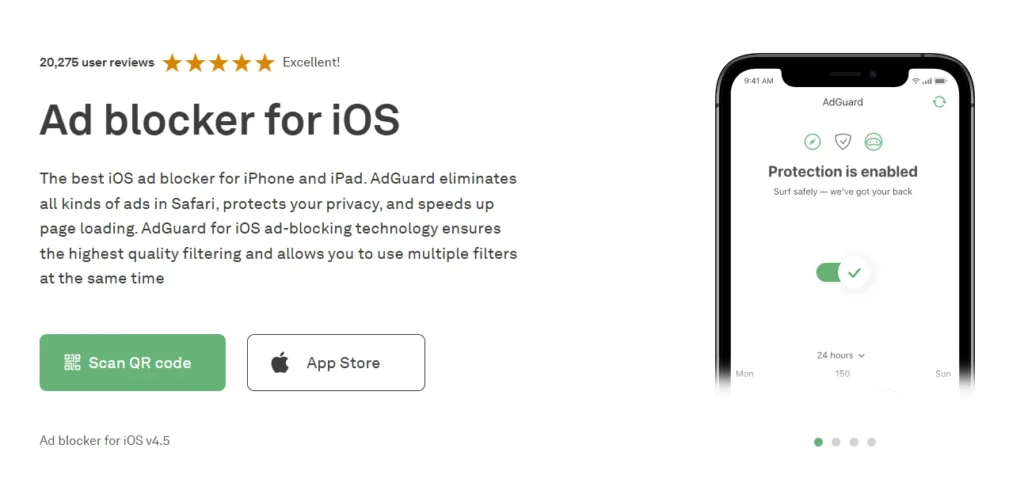
AdGuard is one of the most capable iOS options, and its free tier already covers solid Safari Content Blocking. Stepping up to AdGuard Pro adds DNS filtering that works within Apple’s framework, similar in spirit to AdLock’s approach, though packaged differently. AdGuard maintains one of the largest filter list libraries in the category, drawing on years of work refining rules across desktop and mobile.
The tradeoff is complexity. AdGuard’s settings menu offers more configuration depth than most users need, and first-time setup can feel like a lot for someone who just wants ads gone. Power users will appreciate the granularity; casual users may find Wipr 2 or 1Blocker friendlier. AdGuard is a trusted, long-running brand, and the free tier alone makes it worth trying before paying for anything.
Strengths
- Strong free tier
- Massive filter list library
- DNS filtering in Pro tier
Limitations
- Steeper learning curve
- Best features require Pro subscription
1Blocker
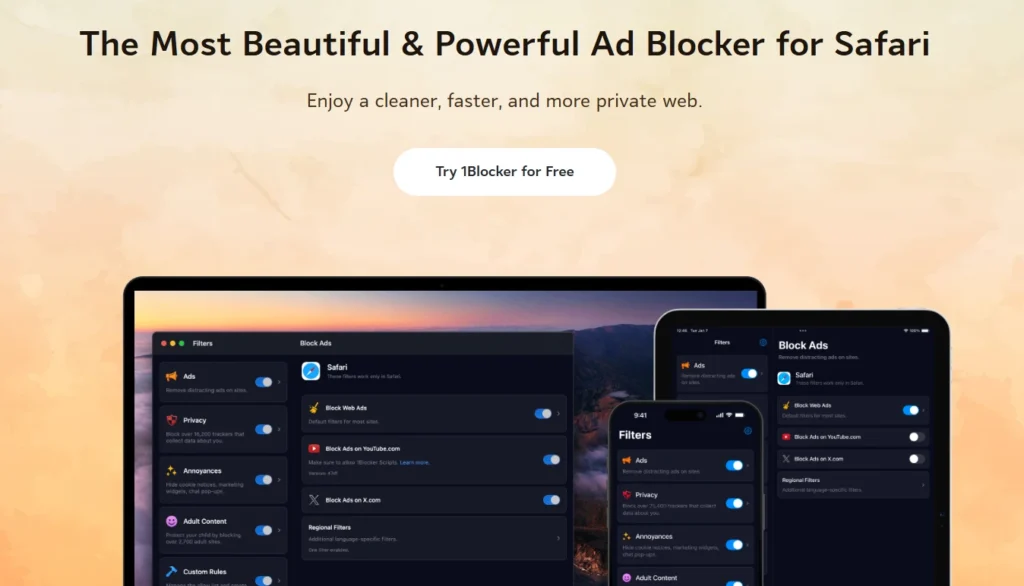
1Blocker won an Apple Design Award, and it shows the moment you open it. Built natively in Swift specifically for the Apple ecosystem, it feels less like a third-party utility and more like something Apple could have shipped itself. Safari integration is seamless, tracker blocking is thorough, and it supports regional filter lists for users outside English-speaking markets.
1Blocker syncs across iPhone, iPad, and Mac if you’re invested in Apple’s ecosystem broadly, which is a real advantage for households with multiple Apple devices. The subscription model is the main drawback for budget-conscious users, but the polish and design quality genuinely set it apart from more utilitarian competitors.
Strengths
- Apple Design Award-winning UX
- Syncs across iPhone, iPad, Mac
- Regional filter list support
Limitations
- Subscription-only, no one-time option
- No DNS-level filtering
Wipr 2
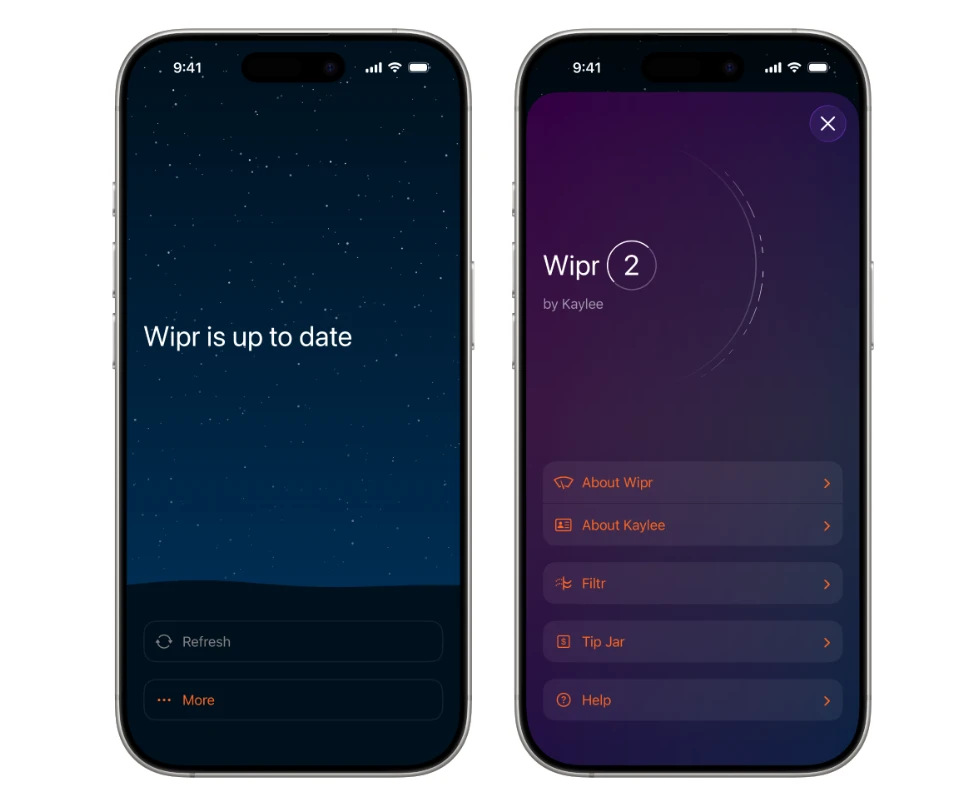
Wipr 2 does one job and refuses to complicate it. Install it, flip it on in Safari settings, and you’re finished. There’s no dashboard full of toggles, no filter list management, no account to create. For the significant number of iPhone users who just want ads gone without learning a new app, this simplicity is the entire pitch, and it delivers.
It’s a one-time purchase rather than a subscription, which stands out in a category full of recurring fees. It’s been updated cleanly for iOS 19 and continues to be one of the most lightweight Content Blockers available, with minimal impact on page load speed or battery life. The tradeoff is that there’s nothing to configure: no DNS option, no per-site rules, no advanced tracker dashboard. For most non-technical users, that’s a feature, not a flaw.
Strengths
- One-time purchase, no subscription
- Zero configuration required
- Extremely lightweight
Limitations
- No DNS filtering option
- No advanced customization
NextDNS
NextDNS isn’t really an ad blocker app in the traditional sense, it’s a configurable DNS service. Set it as your Private DNS under Settings → General → VPN & Device Management, and it filters ad and tracker domains at the network request level across every app on your phone, not just Safari. This is the closest thing iOS has to system-wide blocking, working entirely within Apple’s allowed configuration options rather than around them.
The free tier covers up to 300,000 queries a month, which is enough for most individual users. NextDNS is highly customizable: you can build custom blocklists, view query logs, and fine-tune exactly what gets filtered. It’s the best option for power users who want coverage beyond Safari, though it requires more setup effort than a one-tap Safari extension and won’t catch everything a dedicated app-side ad SDK throws at it.
Strengths
- Free tier with generous query limit
- Covers all apps, not just Safari
- Deep customization and logs
Limitations
- More setup than a simple Safari extension
- Doesn’t catch all in-app ad calls
AdBlock Pro for Safari
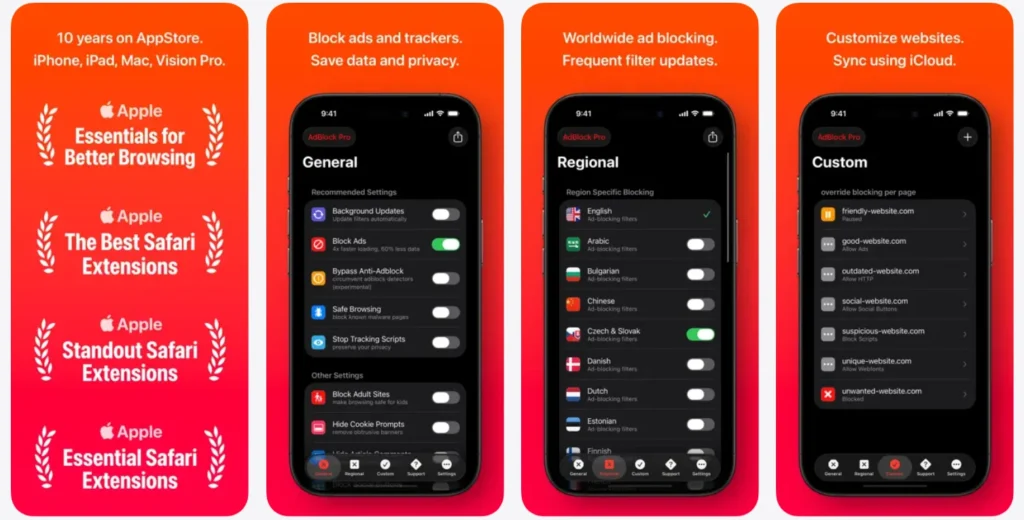
AdBlock Pro has held bestseller status in several country App Stores, and its strength is YouTube ad blocking inside Safari specifically. Setup is quick and aimed squarely at users who don’t want to dig into settings menus, and the filter lists update at a healthy pace to keep up with new ad domains. It sits comfortably as a mid-priced, no-frills option.
It doesn’t offer the DNS-layer extras that AdLock or AdGuard Pro provide, so its coverage stays within Safari only. For users whose primary frustration is YouTube ads while browsing, though, that focus pays off, and the straightforward setup makes it an easy recommendation for less technical users.
Strengths
- Strong YouTube-in-Safari blocking
- Quick, simple setup
- Regular filter updates
Limitations
- No DNS filtering layer
- Safari-only coverage
The YouTube Problem on iPhone — And How to Solve It
This is the single most common question iPhone users ask about ad blocking, so it deserves its own answer: can you block YouTube ads on iPhone? The answer depends entirely on which YouTube you mean.
- YouTube app (native): Ads cannot be blocked here. Google actively prevents Content Blockers from reaching inside the native app’s sandbox. YouTube Premium remains the only official ad-free path for the app itself.
- YouTube in Safari: This works, and works well, with AdLock, AdGuard, 1Blocker, or AdBlock Pro installed. Open youtube.com in Safari instead of the app, and the Content Blocker handles the rest.
Quick fix
Bookmark youtube.com to your Home Screen from Safari (Share → Add to Home Screen). It opens like an app but runs through Safari, meaning your block YouTube ads iPhone setup applies automatically every time.
Brave for iOS is worth a mention here too. It has ad blocking built into the browser itself rather than relying on a separate Content Blocker, and it handles YouTube playback in-browser cleanly. If you’d rather not install a third-party extension alongside Safari, switching to Brave is a reasonable one-app alternative.
Anecdotally, iPhone 17 and iOS 19 users report noticeably better YouTube ad blocking in Safari than on previous iOS versions, largely thanks to WebKit improvements that handle dynamic ad insertion more reliably.
In-App Ads in Games: The Hard Truth
No ad blocker on iPhone, regardless of price or reputation, can block ads inside games, Instagram, TikTok, or the YouTube app itself. This isn’t a quality gap between products; it’s Apple’s sandboxing model working exactly as designed. Every app runs in its own isolated container, and Content Blockers only have authority inside Safari. There’s no loophole here, and any app claiming otherwise on the App Store either doesn’t deliver or violates Apple’s guidelines and risks removal.
Realistic options exist, even if none are complete fixes. DNS filtering through NextDNS or AdGuard Pro’s DNS layer catches some ad server requests at the network level, including occasionally from apps. Using a website version of a service inside Safari, instead of its native app, brings that traffic back under Content Blocker coverage. And for apps you use constantly, paying for an official ad-free tier is often genuinely the most reliable fix, even if it’s not free.
Quick Comparison: iPhone Ad Blockers
| Tool | Works in Safari | DNS Filtering | YouTube in Safari | In-App Ads | Free Option | Price |
| AdLock | Yes | Yes | Strong | No | Trial only | Subscription |
| AdGuard | Yes | Pro only | Strong | No | Yes | Free + Pro |
| 1Blocker | Yes | No | Good | No | No | Subscription |
| Wipr 2 | Yes | No | Good | No | No | One-time |
| NextDNS | Indirect | Yes | Partial | Partial | Yes | Free + paid tiers |
| AdBlock Pro | Yes | No | Strong | No | No | Mid-range |
Which Should You Use on iPhone 17?
The right pick depends on how much setup you’re willing to do and how far past Safari you want coverage to reach.
- Easiest setup, zero configuration: Wipr 2. Install, enable in Safari settings, done. No dashboard, no decisions to make.
- Most complete Safari + DNS coverage: AdLock or AdGuard Pro. Both pair Safari Content Blocking with DNS-level filtering for the broadest practical reach Apple allows.
- Apple design lover with multiple devices: 1Blocker. Native Swift build, Apple Design Award polish, syncs across iPhone, iPad, and Mac.
- Power user who wants maximum control: NextDNS + AdGuard combo. DNS-level coverage across all apps, plus Safari-specific blocking layered on top.
- Want to stop YouTube ads specifically: AdLock or AdGuard, paired with watching YouTube through Safari rather than the native app.
- Budget-conscious: NextDNS free tier for network-level coverage, plus Wipr 2’s one-time purchase for Safari. No subscriptions required.
There’s no version of iOS ad blocking that matches the brute-force, system-wide filtering Android allows. Apple’s sandbox model trades that flexibility for a more contained, more private architecture, and the tools that work best in 2026 are the ones built to make the most of it rather than fight it. Set realistic expectations, pick the right combination for how you use your phone, and Safari browsing on iPhone 17 can genuinely be ad-free.