How to Recover Files from a Corrupted or Unreadable External Hard Drive
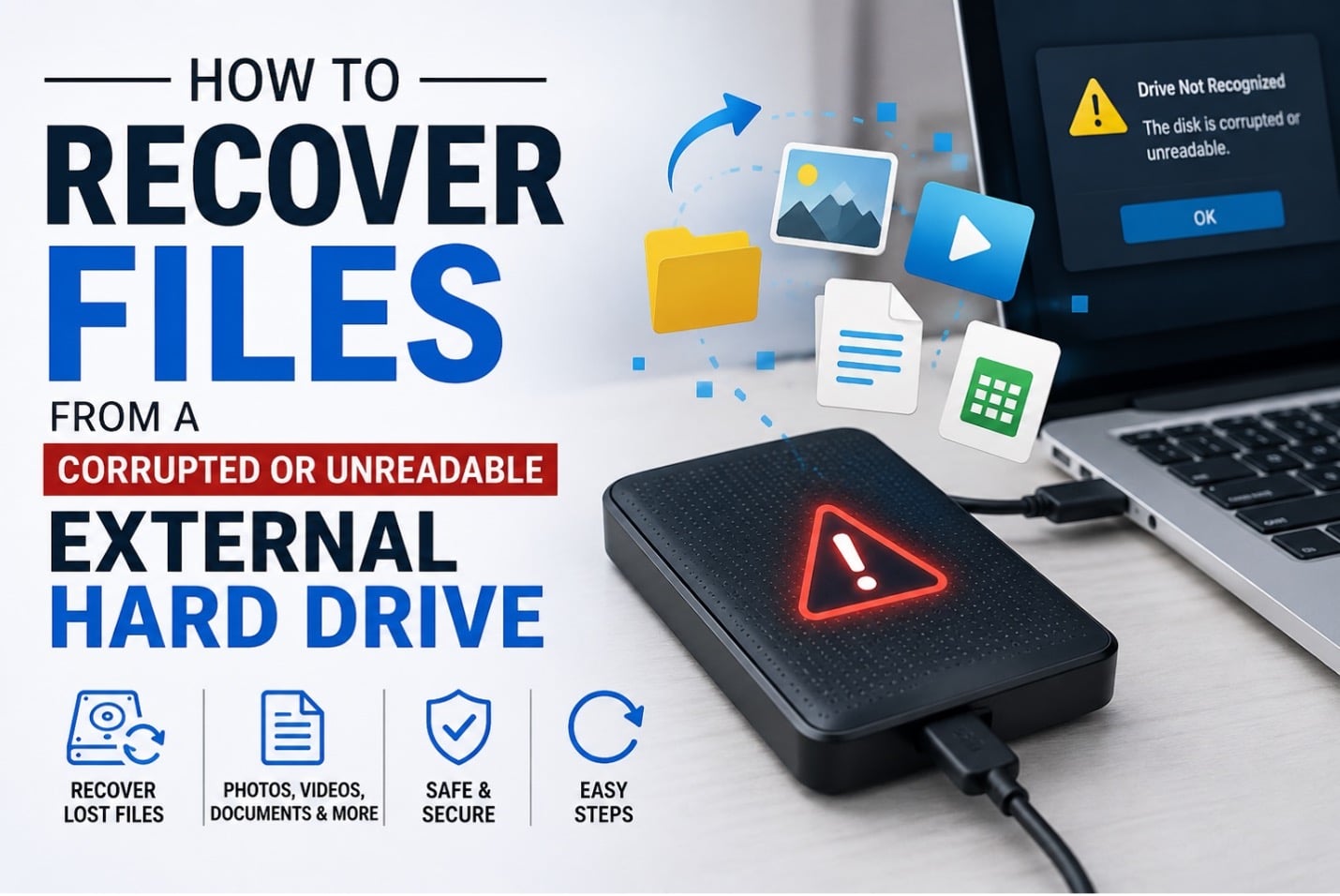
You plug in the drive, wait for that little sound, and instead of your folders you get “This drive needs to be formatted.” Or worse – nothing shows up at all. If you’ve been here, you know the feeling: a small shock of panic followed by a mental scramble through everything that might be on there. Wedding photos. A client’s project files. Three years of tax documents you swore you’d back up “eventually.”
Here’s the part that usually gets lost in the panic: most of the time, your files are still physically sitting on the disk. What’s broken is the drive’s ability to tell your computer where they are and how they’re organized. That’s a very different problem from the data actually being gone, and it’s why recovery – software or professional – works as often as it does.
This isn’t going to be a doom-and-gloom checklist. It’s a practical walkthrough of what actually causes this, how to figure out what you’re dealing with, and what to do about it without making things worse along the way.
What Actually Causes This
There’s rarely one single reason a drive goes bad on you. A few of the usual suspects:
Pulling the drive out mid-transfer is a classic one — the write process gets interrupted and the file system table ends up half-updated, which confuses everything downstream. Power cuts do something similar. So does a firmware hiccup or an incomplete format that never finished properly.
Then there’s the physical side of things: a drop, a spill, a drive that’s been living in a hot car for too long. Mechanical hard drives have moving parts, and moving parts wear out. Even SSDs, which have no moving parts at all, have a finite number of write cycles before cells start failing.
Malware is also worth mentioning, though it’s less common than people assume — some strains do go after file allocation tables specifically, scrambling the index without touching the files underneath it.
The one thing that matters more than the exact cause, though, is whether you’re dealing with logical damage (a file system problem) or physical damage (a hardware problem). That distinction decides everything about what happens next.
First: Stop Using the Drive
I know it’s tempting to keep clicking around, opening folders, hoping something reappears. Don’t. Every write to that drive – even something as small as Windows indexing it in the background – is a chance to overwrite the data you’re trying to save. If you can, set the drive aside entirely and do your troubleshooting from another machine or a read-only connection.
Figure Out What You’re Actually Dealing With
Before touching any software, pay attention to what the drive is doing.
If it’s an HDD and you hear clicking, grinding, or repeated beeping – stop right there. That’s a mechanical symptom, and it means the drive needs a professional recovery lab, not an app. Running scan after scan on a dying drive can push it past the point of no return.
If the drive shows up in File Explorer but won’t open, or it reports 0 bytes, or it nags you to format it – that’s usually logical corruption, and it’s the scenario software can actually fix.
And if the drive doesn’t show up anywhere at all, don’t assume the worst yet. Try a different cable, a different USB port, even a different computer. Sometimes it’s the enclosure or the USB bridge that’s failed, not the drive inside it.
Peek at Disk Management
Right-click the Start button and open Disk Management. You’re looking for whether the drive shows up at all, whether it has a partition, and what status it reports — “RAW,” “Unallocated,” and “Healthy” all mean different things.
A “RAW” status is actually decent news, believe it or not. It usually points to a logical issue rather than a dying drive, and those are the cases where recovery software tends to do well.
Whatever you do here, don’t hit “Format,” even if your computer is practically begging you to. Formatting rewrites the file system structure, and while it doesn’t necessarily erase your data instantly, it makes recovery a lot messier.
Bring in Actual Recovery Software
This is the point where a lot of people reach for CHKDSK or a disk repair utility, hoping it’ll just fix things. Sometimes it does. But those tools are designed to repair the file system, not preserve your data – and in the process of “fixing” things, they can overwrite the very metadata that points to your files. Not great.
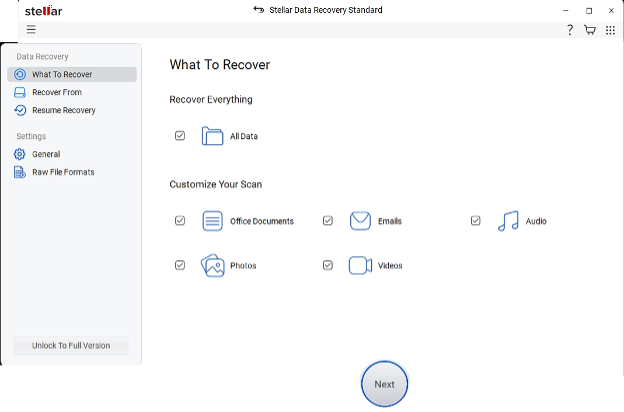
What you want instead is something built to read the raw sectors of the drive directly, independent of whatever’s broken in the file system layer. I’ve used Stellar Data Recovery for exactly this kind of situation – a drive that showed up as RAW and refused to open normally. It scans at the sector level, so it doesn’t need a working file table to find your files; it identifies them by their internal signatures instead. It also handles NTFS, exFAT, and FAT32, which covers pretty much any external drive you’d plug into a Windows PC.
The workflow, in practice, goes roughly like this:
Install the software on your computer – never on the affected drive itself, since that’s just inviting an overwrite. Connect the drive and select it as the scan target. Start with a quick scan, since it’s faster and catches straightforward cases; if it comes up short, run a deep scan, which takes longer but reads the disk sector by sector. Once it’s done, preview the files it found before recovering anything – most tools let you check photos, documents, and videos to confirm they’re actually intact and not just fragments. Then, and this part really matters, save whatever you recover to a different drive. Writing recovered files back onto the same corrupted drive can overwrite data you haven’t pulled off yet.
Double-Check What You Got Back
Once the recovery finishes, don’t just assume it worked – open a handful of files and actually look at them. Videos and large documents are worth a closer look, since a partial recovery can sometimes produce a file that opens but cuts off halfway through.
Once you’ve confirmed everything’s good, back it up properly this time – ideally in two places, like a cloud service plus a second physical drive. And if the original drive showed any signs of physical wear along the way, treat this as its retirement. Don’t trust it with anything important again.
When It’s Time to Call in a Lab
If the drive is clicking, refusing to spin up, visibly damaged, or if software just can’t find your files no matter what you try, that’s your cue to stop and call a professional data recovery service. They work in cleanrooms with specialized hardware built for exactly this – repairing or bypassing failed components in ways no consumer software can safely attempt.
The Short Version
A corrupted external drive feels catastrophic in the moment, but it rarely is. Stop using it right away, figure out whether you’re dealing with a logical glitch or real hardware failure, and lean on dedicated recovery software – something like Stellar Data Recovery – before you try anything more drastic. Stay patient, don’t rush the process, and there’s a good chance you’ll get everything back intact.