
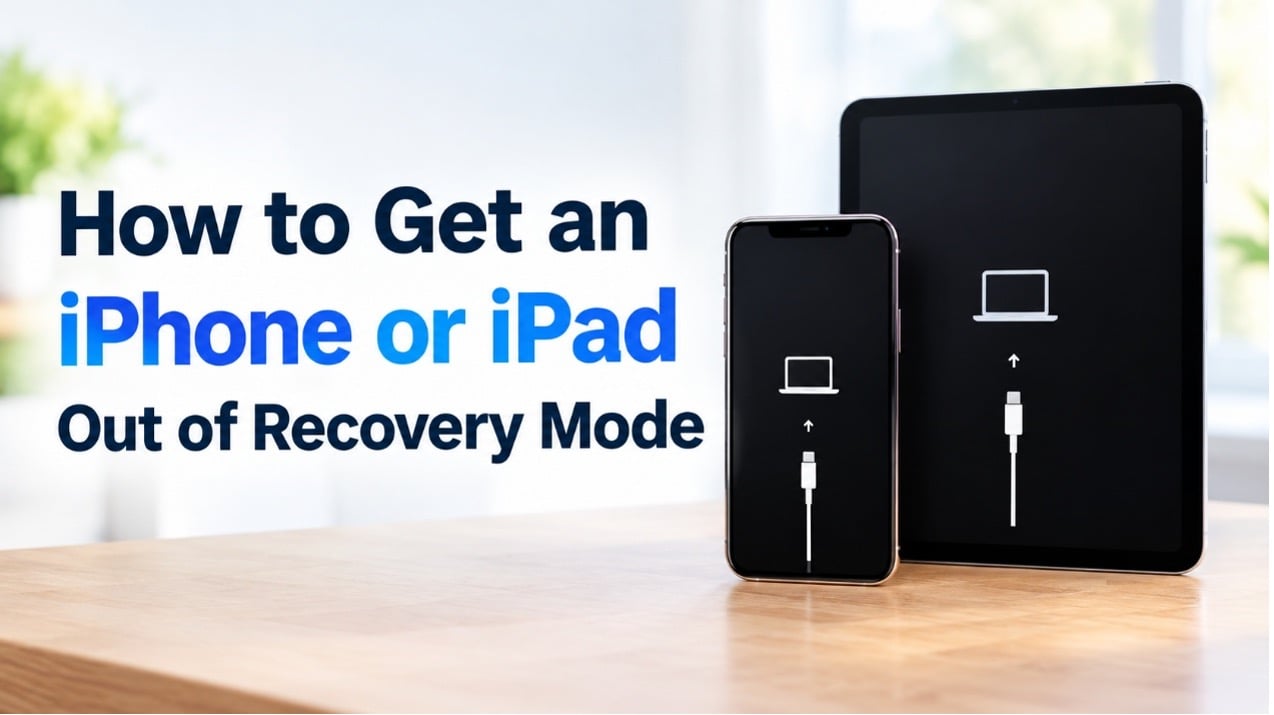
How to Get an iPhone or iPad Out of Recovery Mode
Recovery Mode is a useful troubleshooting feature that allows you to restore or update an iPhone or iPad when the device cannot start normally. However, if your device remains on the Recovery Mode screen and does not return to the normal interface, it can be frustrating.
Fortunately, there are several ways to get an iPhone or iPad out of Recovery Mode. You can first try a force restart, use a professional iOS system repair tool, or restore the device through Finder or iTunes. Below, we will explain how to exit Recovery Mode on iPhone and iPad step by step.
Why Is My iPhone or iPad Stuck in Recovery Mode?
Before learning how to exit Recovery Mode, it helps to understand why an iPhone or iPad may become stuck on the Recovery Mode screen.
Common causes include:
- A failed or interrupted iOS/iPadOS update
- An unsuccessful restore process
- Corrupted or damaged system files
- Software crashes or system errors
- Insufficient storage during an update
- Problems occurring while connecting to a computer
- Other unexpected iOS or iPadOS system issues
Sometimes, Recovery Mode is entered intentionally to update or restore a device. However, if the iPhone or iPad cannot complete the process and repeatedly returns to the Recovery Mode screen, you may need to troubleshoot the system. Before trying more advanced solutions, make sure your device has enough battery power.
How to Get an iPhone or iPad Out of Recovery Mode
Method 1: Exit Recovery Mode with a Force Restart
A force restart is the easiest way to try to exit Recovery Mode without a computer. It does not normally erase the data stored on your iPhone or iPad.
The steps vary depending on your device model.
iPhone 8 or Later and iPad Without a Home Button
- Quickly press and release the Volume Up button.
- Quickly press and release the Volume Down button.
- Press and hold the Side or Top button.
- Keep holding it until the Apple logo appears.
iPhone 7 and iPhone 7 Plus
- Press and hold the Volume Down and Side buttons simultaneously.
- Continue holding both buttons until the Apple logo appears.
iPhone 6s or Earlier and iPad with a Home Button
- Press and hold the Home and Side or Top buttons at the same time.
- Continue holding the buttons until the Apple logo appears.
Once the Apple logo appears, release the buttons and wait for the device to restart.
Method 2: Use a Professional iOS System Repair Tool
If a force restart does not solve the problem, a professional iOS system repair tool can provide another way to fix an iPhone or iPad stuck in Recovery Mode.
TunesKit iOS System Recovery is designed to troubleshoot various iPhone and iPad system problems. It includes features for entering and exiting Recovery Mode as well as repairing over 150 iOS/iPadOS system issues, such as iPhone stuck on Apple logo, boot loop, and black screen.
Option 1: Exit Recovery Mode with One-Click
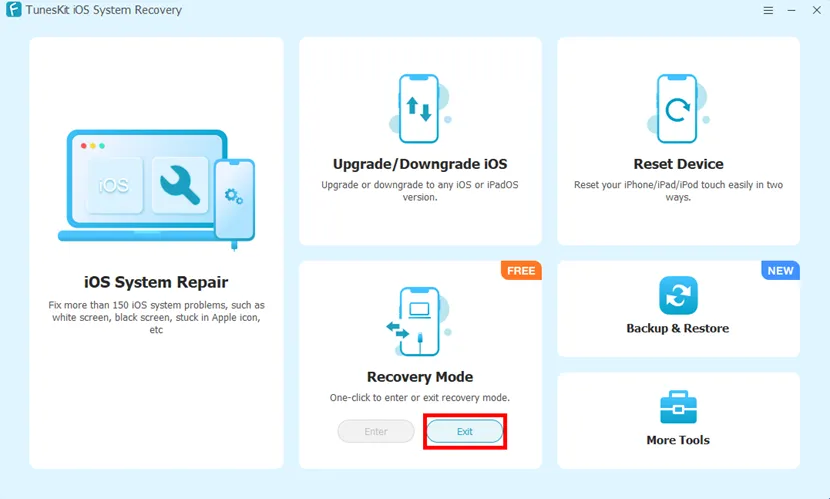
If your primary problem is that your iPhone or iPad is simply stuck in Recovery Mode, TunesKit iOS System Recovery provides a one-click Recovery Mode exit feature.
To get started:
- Install and launch TunesKit iOS System Recovery on a Windows PC or Mac.
- Connect your iPhone or iPad to the computer using a USB cable.
- Select the option to Exit Recovery Mode.
- Wait for the process to finish and check whether the device restarts normally.
Option 2: Fix iPhone or iPad Stuck in Recovery Mode Without Losing Data
If your iPhone or iPad keeps returning to Recovery Mode, the problem may involve an underlying system error rather than Recovery Mode itself. In this situation, you can use the iOS system repair function of TunesKit iOS System Recovery. Its Standard Repair mode is designed to address various iOS/iPadOS system problems while aiming to preserve existing user data in supported situations.
Steps:
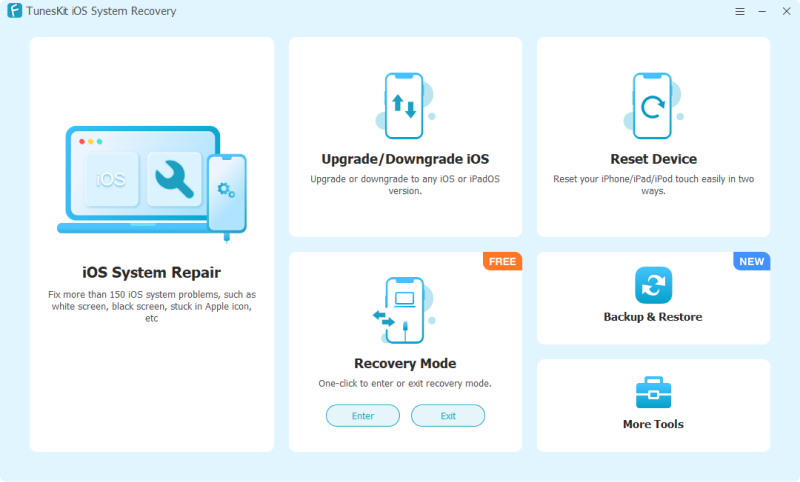
- Connect the iPhone or iPad to your computer and launch TunesKit iOS System Recovery.
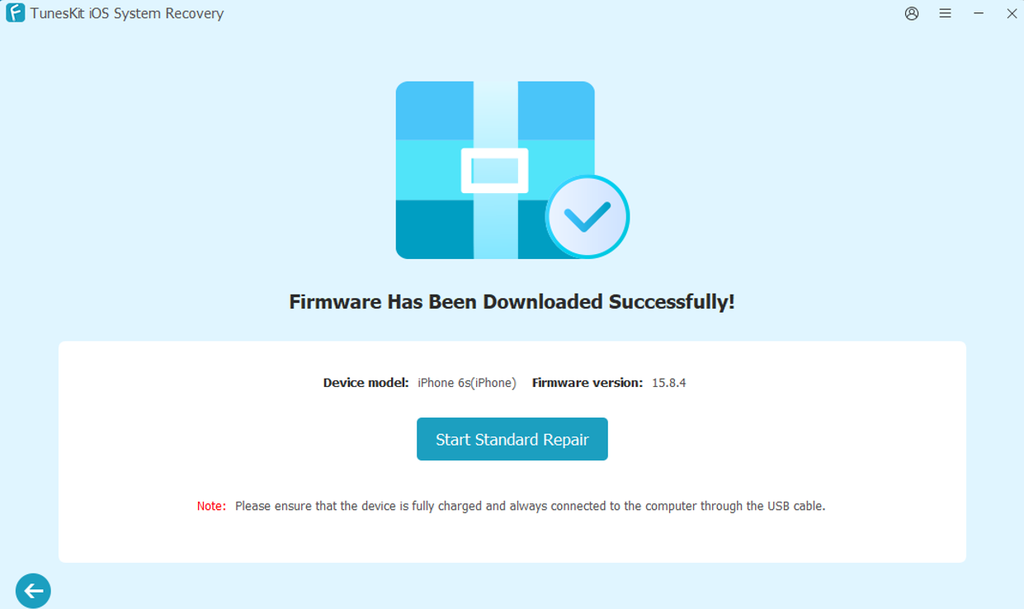
- Select the iOS System Repair feature and choose Standard Repair.
- Check your device information and download the matching firmware package.
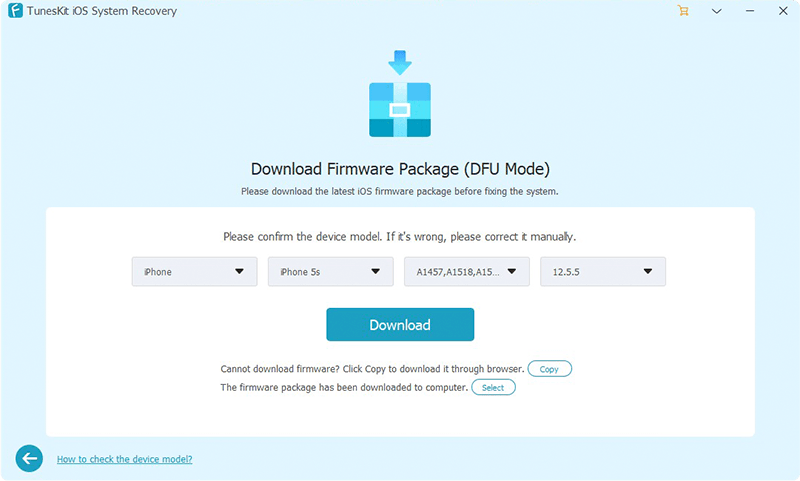
- Once the firmware is downloaded, click Start Standard Repair. Wait until the repair process is completed.
Method 3: Exit Recovery Mode Using Finder or iTunes
If the previous methods do not work, you can use Finder or iTunes to troubleshoot an iPhone or iPad in Recovery Mode. On a Mac running macOS Catalina or later, Finder is used to manage connected iPhones and iPads. On older macOS versions and Windows PCs, iTunes may be used.
Follow these steps:
- Connect your iPhone or iPad to the computer with a USB cable.
- Open Finder or iTunes.
- Select your connected device.
- When the Recovery Mode message appears, choose Update first.
- Wait while the computer downloads and installs the latest compatible software.
- Keep the device connected until the process is finished.
Choosing Update can reinstall the operating system without intentionally erasing your personal data. However, if the update fails repeatedly, you may need to choose Restore.
The Restore option reinstalls iOS or iPadOS and erases the contents of the device. Therefore, if you have a recent backup, make sure it is available before using this option.
Frequently Asked Questions
- Can I exit Recovery Mode without losing data?
Yes. A force restart does not normally erase your data. TunesKit iOS System Recovery’s Standard Repair mode is also designed to preserve data in supported situations.
- Why does my iPhone keep going back to Recovery Mode?
An iPhone may repeatedly enter Recovery Mode because of failed updates, corrupted system files, software errors, or other system problems. If a force restart does not resolve the issue, repairing the underlying iOS problem may be necessary.
- Can I exit Recovery Mode without a computer?
Yes. You can try a force restart without a computer. If the problem persists, however, you may need a computer-based solution such as TunesKit iOS System Recovery, Finder, or iTunes.
Conclusion
When an iPhone or iPad is stuck in Recovery Mode, a force restart is the simplest solution to try first. If it does not work, you can use TunesKit iOS System Recovery to exit Recovery Mode with one click or repair certain underlying iOS/iPadOS system problems.
Finder or iTunes provides another option for updating or restoring the device, although the Restore process erases the device. Therefore, if your priority is to get an iPhone or iPad out of Recovery Mode without losing data, start with a force restart or a suitable repair method before choosing a full restore.