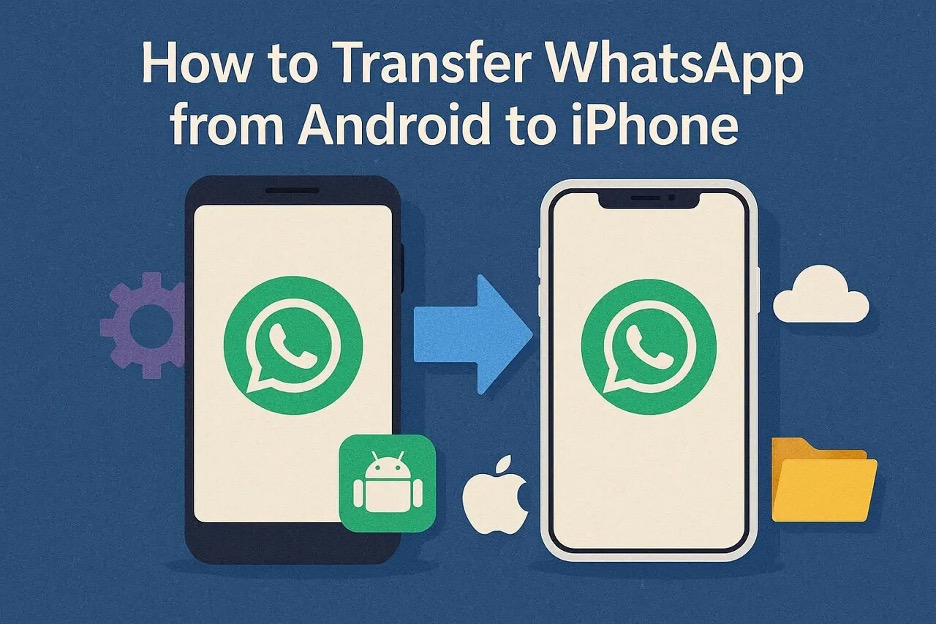
Transfer WhatsApp from Android to iPhone: What to Move First—Chats or Phone Data?
The switch from Android to iPhone feels exciting until data transfer brings confusion. Many people rush the process and lose important chats and contacts in the mix. The truth is, moving WhatsApp and phone data are two separate tasks that need attention. When done correctly, you can keep your memories safe and start fresh on your new iPhone.
Alongside, tools like Dr.Fone – WhatsApp Transfer make the migration process much easier. It guides you to move WhatsApp chats and phone data without missing anything. So, this guide shows how you can move your WhatsApp and phone data without hassle.
Part 1: What Are the Differences Between Phone Data and WhatsApp Transfer?
Phone data transfer refers to a broad process that moves your general phone content. It covers contacts, multimedia, and even applications between devices. These transfers help you set up your new iPhone without starting from scratch. However, such tools often ignore app‑specific data stored inside messaging apps. That’s where WhatsApp transfer becomes essential for anyone switching phones.
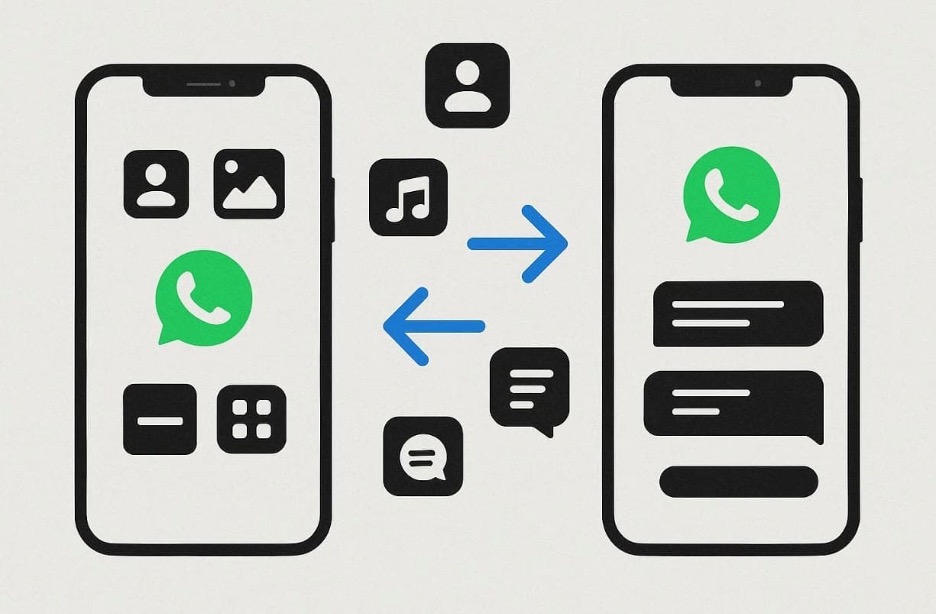
WhatsApp transfer focuses only on the data within the app, including chats and settings. It moves your personal and group conversations while keeping your account details intact. Without this step, users even lose critical messages or media after migration. To transfer WhatsApp from Android to iPhone, you must use a specialized tool like Dr.Fone that supports both stages.
Part 2: Why Mixing WhatsApp and Phone Data Migration Causes Confusion
Migrating WhatsApp and phone data together creates mistakes that confuse most users. They struggle to identify whether issues come from messages or general phone data. These overlaps make fixing errors difficult and disrupt data continuity between devices. The following table highlights the main reasons users get confused during mixed transfers:
| Problem | Description |
| Overlapping Backups | Combined transfers create duplicate or misplaced phone and WhatsApp backup files. |
| Verification Errors | Conflicting authentication steps cause mismatched accounts and failed sign-ins. |
| Media Conflicts | Mixed processes break folder paths, leading to missing WhatsApp photos or media. |
| Account Desync | Simultaneous transfers may cause accounts to log out or lose sync. |
| Storage Overload | Moving all data layers together overwhelms device memory and slows the migration. |
| App Corruption | Concurrent transfers interrupt file restoration, sometimes corrupting WhatsApp data files. |
| Missed Settings | Mixed transfers overlook chat preferences, alerts, and notification settings. |
Part 3: What to Transfer First When Moving from Android to iPhone
Switching from Android to iPhone requires the correct order to keep your data intact. Many users lose chats or account access when they transfer both layers together. So, understanding what to move first ensures fewer verification errors and faster setup. Hence, the points below explain the ideal sequence and approach for safe migration:
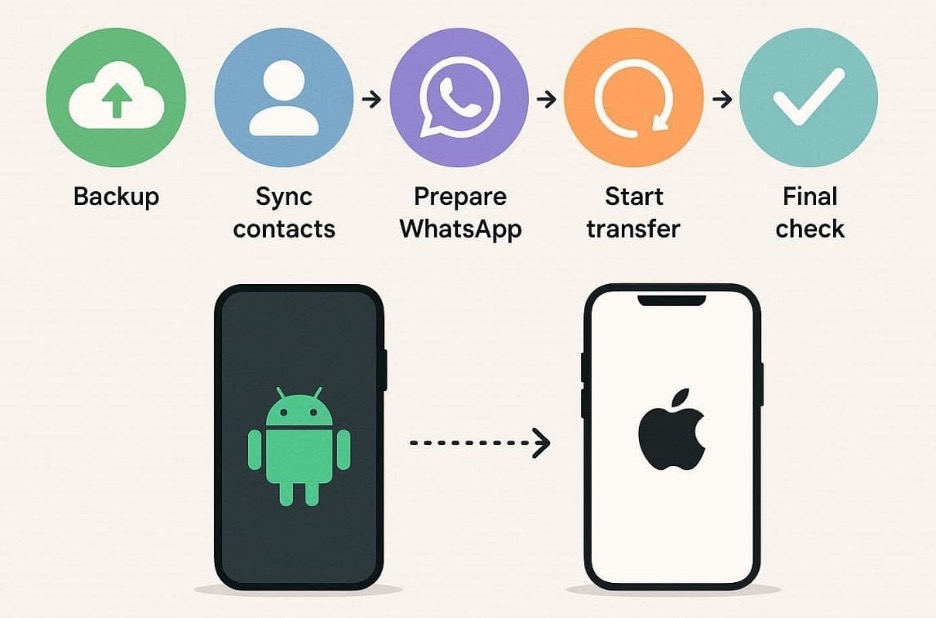
- Backup First: Create complete backups of your Android data before beginning any migration. These backups protect contacts and files if the transfer is interrupted midway.
- Sync Contacts: Sync your contacts with Google or export them before switching to iPhone. Doing this ensures every number appears once the transfer is completed.
- Prepare WhatsApp: Update your app to the latest version before starting migration. Updated apps reduce compatibility issues and prevent message syncing errors.
- Start Transfer: Use a trusted tool to move chats, photos, and settings across devices. Solutions like Dr.Fone simplify steps and ensure messages appear after the transfer.
- Final Check: Restart both phones to confirm that all apps and files display. Following this sequence clarifies how to transfer Android phone to iPhone.
Part 4: Tips to Prevent Android-to-iPhone Transfer Problems
Many users face issues when moving data from Android to iPhone. Problems like missing contacts or messages occur due to improper steps or rushed transfers. Yet, following simple rules can prevent errors and keep data intact. So, consider the tips shown in the table below to transfer WhatsApp from Android to iPhone:
| Problem | Prevention Tip |
| Unstable Connection | Use a stable wired connection or high-speed Wi‑Fi during transfer. |
| Old Backups | Always create fresh backups before starting migration to avoid outdated data loss. |
| Low Storage | Check available storage on both phones to prevent incomplete migrations midway. |
| App Incompatibility | Update WhatsApp and system software on both devices before transferring data. |
| Wrong Verification | Log in with the same WhatsApp number to verify your account. |
| Skipped Media | Ensure “include media” is enabled when exporting or restoring your WhatsApp data. |
| Interrupted Transfer | Avoid multitasking or disconnecting cables while the transfer is in progress. |
Part 5: Use Dr.Fone WhatsApp Transfer and Phone Switch for an Effortless Move
Switching between phones feels rewarding yet risky when managing your personal data. Many users lose data because they treat all transfers alike. To avoid confusion, it’s essential to use reliable software that handles each layer. So, Dr.Fone – WhatsApp Transfer helps move all WhatsApp data across devices. It supports Android 16 and iOS 26 across all major mobile brands. You can transfer complete WhatsApp and Business chats, including photos and stickers.
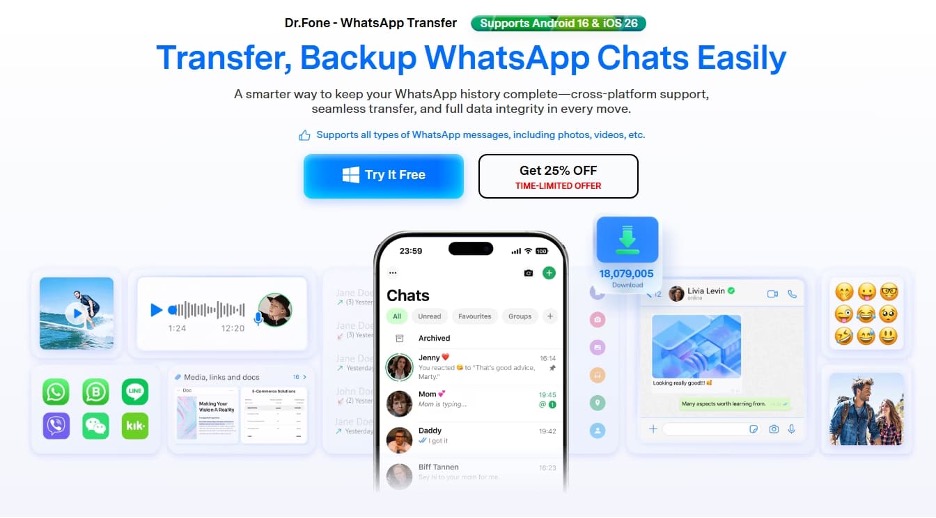
Also, Dr.Fone – Phone Transfer focuses on broad data movement between Android and iOS systems. The tool supports more than 15 file types, covering every data category available. Before migrating, it allows selective file type transfers to avoid unnecessary data copying. Moreover, Dr.Fone’s one‑click transfer simplifies switching phones without cloud accounts or manual steps.
Key Features
- Ultra-Fast Speed: Delivers 96% faster transfers compared to traditional transferring tools.
- Export Data: Export chats and media to PDF or HTML for offline viewing.
- App Transfer: Besides WhatsApp, it also moves other apps like Viber and WeChat.
Comprehensive Guide to Migrate WhatsApp via Dr.Fone – WhatsApp Transfer
Take guidance from the given steps to transfer WhatsApp using this data transfer program:
Step 1. Access the Tool’s WhatsApp Transfer
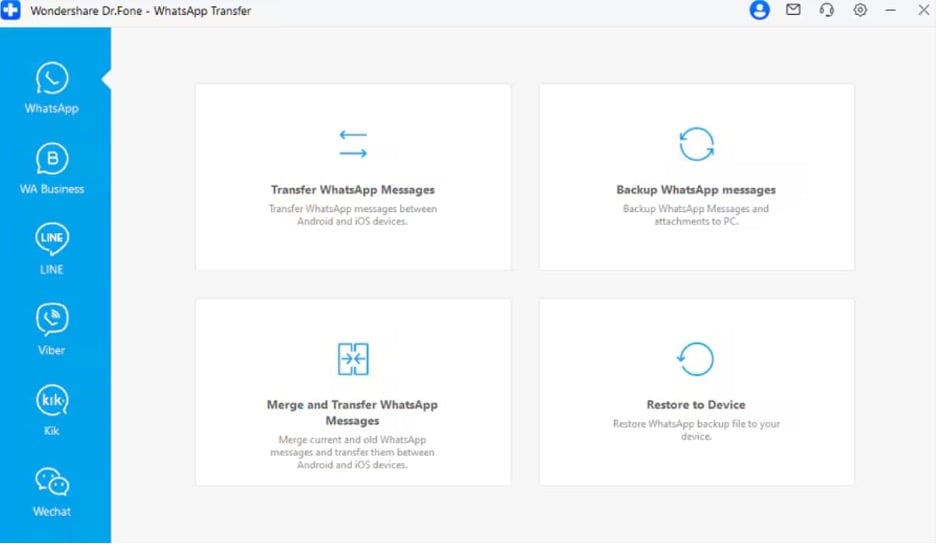
Open the program to navigate to the “Toolbox” section and select “WhatsApp Transfer.” Afterward, link both smartphones and click the “Transfer WhatsApp Messages” option.
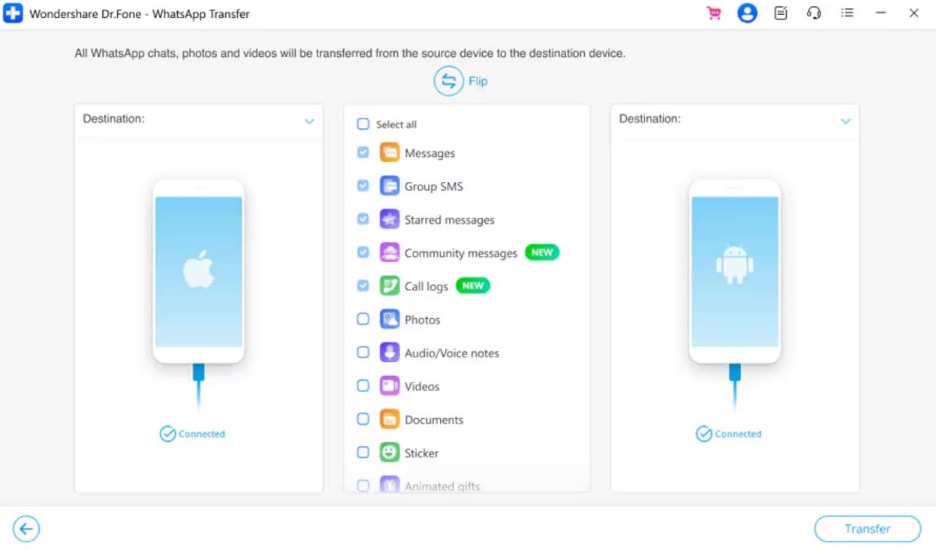
Step 2. Choose WhatsApp Content to Move
Pick the displayed WhatsApp data types you want to transfer and hit “Transfer.”
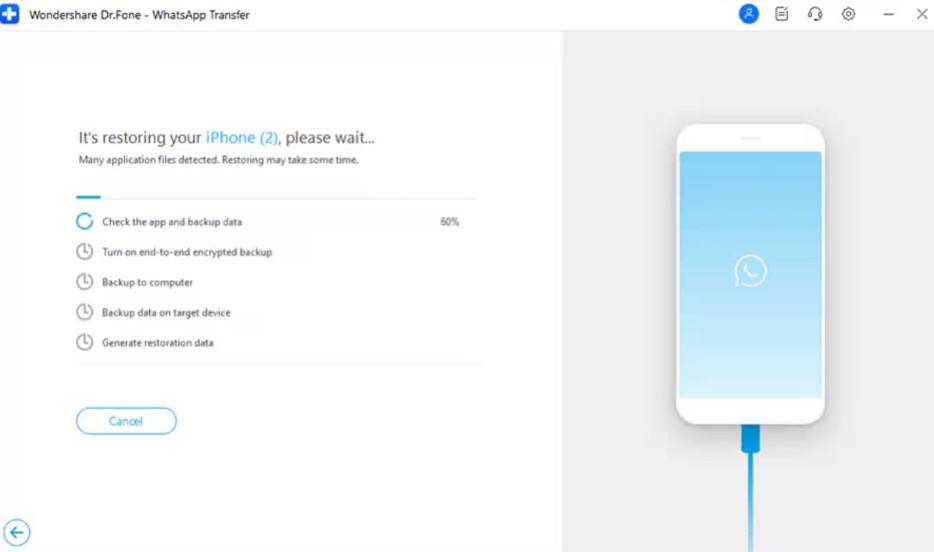
Step 3. Start Transferring WhatsApp Data
Follow the on-screen instructions, and the tool will begin moving the selected WhatsApp content.
Detailed Manual to Migrate Phone’s Data via Dr.Fone – Phone Transfer
Follow the given guide to learn how to transfer an Android phone to an iPhone via Dr.Fone:
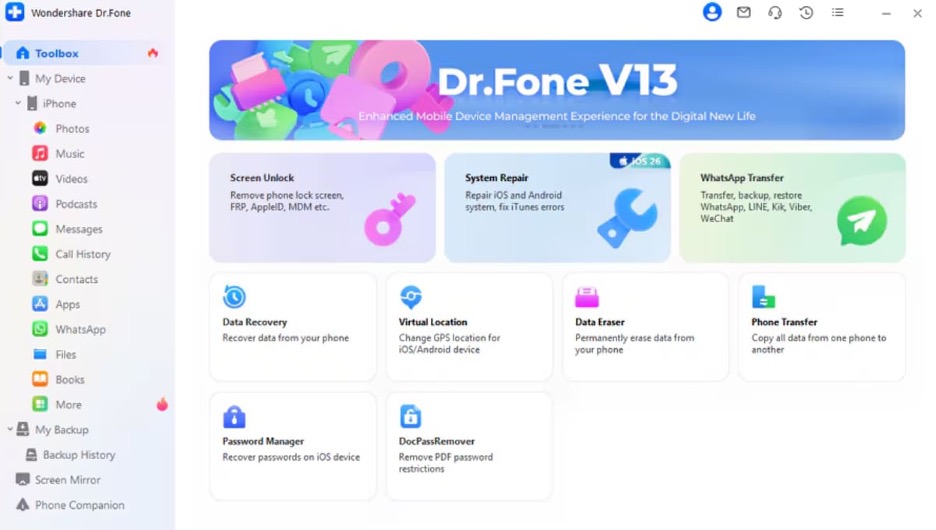
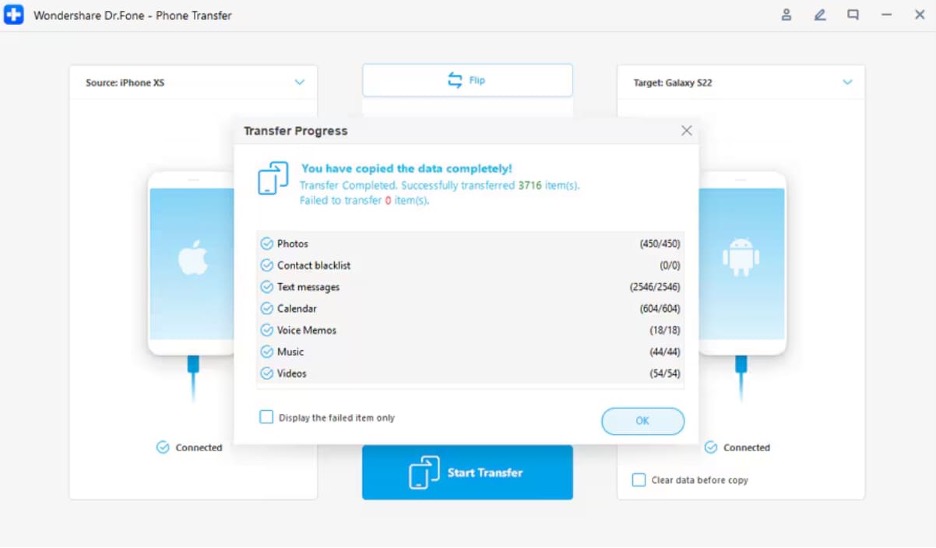
Step 1. Launch the Phone Transfer Tool
Access the “Phone Transfer” feature and connect both devices to your computer with USB cables.
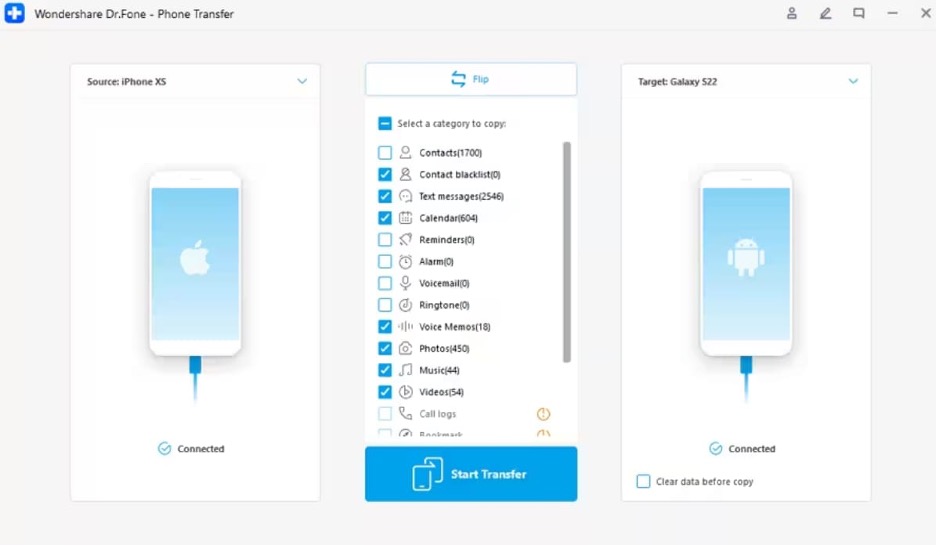
Step 2. Choose Phone Data to Migrate
Upon recognizing both phones, select the files or media you want to move and click “Transfer.”
Step 3. Start Moving Your Android Data
Follow the displayed prompts, and your selected data will initiate migration to the new device.
Conclusion
To conclude, transferring data between phones is easier when done stepwise. This approach keeps your chats and other data safe without any mix-ups. Following the right order and simple tips prevents common errors during the switch. Therefore, you stay organized and enjoy your new device quickly. For a smooth WhatsApp migration, use Dr.Fone – WhatsApp Transfer to move chats.