
Hard Disk Drives Capacity Limits
Intro
Contents
You may have heard about or even experienced yourself the problem of buying a new hard disk drive to install on your old (and sometimes not that old) machine and facing some size limitation, i.e., your old system does not recognizing the full capacity of your hard disk drive.
In this tutorial we will explain why this happens, list all hard disk drive capacity limitations that have ever existed since the PC was created and show you how to fix them.
A capacity limitation can occur for several reasons, such as a hardware limitation, a limitation of the file system your hard drive is using or a limitation of the operating system you are using.
First, let’s understand how data are stored on hard disk drives.
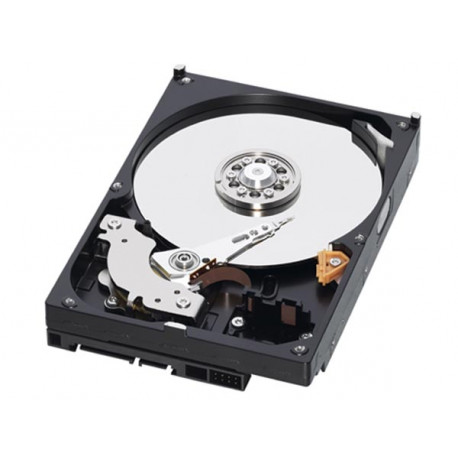
Hard disk drives are sealed system containing one or more magnetic discs inside. Each side is simply called side or head, because for each side there is a magnetic head available for reading and writing data. Each side of a magnetic disc is divided into several concentric tracks or cylinders.
Then each track is divided into sectors. Each sector holds 512 bytes of information. The minimum unit the hard disk drive controller can access is the sector, meaning that if it has to read just one byte from a given sector, it must read the entire sector.
The number of bytes inside a sector is fixed, it is always 512 bytes. But the number of tracks, sectors per track and sides (i.e., heads) a hard drive has will depend on the model. The number of heads, tracks and sectors per track a hard disk drive has is called geometry.
If you multiply the number of heads by the number of tracks and then by the number of sectors per track you will find how many sectors a given hard disk drive has (for newer hard disk drives the manufacturer announces the number of sectors the drive has, instead of its geometry). Multiplying this number by 512 will give you the total capacity of a hard disk drive in bytes.
The first problem with hard disk drive capacity is that manufacturers assume that kilobyte (KB), megabyte (MB), gigabyte (GB) and terabyte (TB) are different things from what they really are, making you to have a hard disk drive with less capacity than advertised. This problem is known by several names, like “rounding,” “formatted capacity vs. unformatted capacity,” etc.
Some people even wrongly assume that the operating system is the villain behind the vanishing of space, but the truth of the matter is that the hard drive manufacturers are the one to blame, as they announce their products with a capacity higher than the real drive capacity.
| Unit | Symbol | Base 2 | Base 10 |
| Kilo | K | 2^10 | 10^3 |
| Mega | M | 2^20 | 10^6 |
| Giga | G | 2^30 | 10^9 |
| Tera | T | 2^40 | 10^12 |
| Peta | P | 2^50 | 10^15 |
| Exa | E | 2^60 | 10^18 |
For example, hard disk drive manufacturers assume that 1 GB equals to 1 billion (10^9) bytes, while in fact 1 GB equals to 1,073,741,824 (2^30) bytes.
Let’s take a real example, Seagate/Maxtor DiamondMax 21 hard disk drive with “250 GB.” It is announced as being a 250 GB hard disk drive, having 488,397,168 sectors. With this number of sectors we can easily find out that the capacity of this hard disk drive is of 250,059,350,016 bytes, or 232.88 GB and not 250 GB. So here is why your 250 GB hard drive is only formatted with 232 GB: it IS a 232 GB hard drive!
Base 2 SHOULD be mention as Ki, Mi, Gi, …… (ISO).
So a 250GB disk is a 232 GiB disk…..
Disk manufacturers hate get their dimensions & maths right otherwise there would be no [SH]DD.s
Excellent detail and history. What is the total storage space per OS given that multiple drives (partitions)? Is it 26x the per disk limit given every letter of the alphabet can be assigned?