
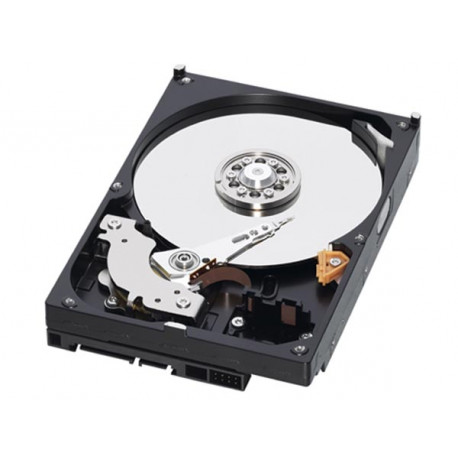
Hard Disk Drives Capacity Limits
NTFS Limits
Contents
NTFS is the native file system from Windows NT, 2000, XP, 2003 and Vista, and should be your file system of choice if you are a Windows user. NTFS itself has its own limits – as we will discuss below – but at least they are set at very high numbers, even for today’s standards.
In theory NTFS can use 64-bit addressing, but the way it is implemented today NTFS uses 32-bit addressing. NTFS continues to use clusters, which are 4 KB in size by default for partitions starting at 2 GB. Thus the maximum partition size on NTFS is of 16 TB.
In the table below you can see the default cluster sizes for NTFS partitions. “All” under “Operating System” means “all operating systems that support NTFS,” i.e., Windows NT, 2000, XP, 2003 and Vista.
| Partition Size | Cluster Size (NTFS) | Operating System |
| Up to 512 MB | 512 bytes | All |
| From 512 MB to 1 GB | 1 KB | All |
| From 1 GB to 2 GB | 2 KB | All |
| From 2 GB to 16 TB | 4 KB | All but Windows NT up to 3.5 |
| From 2 GB to 4 GB | 4 KB | Windows NT up to 3.5 only |
| From 4 GB to 8 GB | 8 KB | Windows NT up to 3.5 only |
| From 8 GB to 16 GB | 16 KB | Windows NT up to 3.5 only |
| From 16 GB to 32 GB | 32 KB | Windows NT up to 3.5 only |
| From 32 GB to 256 TB | 64 KB | Windows NT up to 3.5 only |
For Windows NT (all versions) the table above is only used for new partitions. Partitions that are created during the operating system installation will always use 512-byte clusters, limiting the size of these partitions to 2 TB (on the other hand they will use the smallest cluster size possible, making partitions created this way to not suffer the slack space problem).
Since NTFS clusters are really small compared to FAT systems, slack space isn’t a significant problem under NTFS (in worst-case scenario you lose 4,093 bytes per file in slack space under NTFS) – at least today. As you can see on the table, Windows NT up to version 3.5 used 64 KB clusters for partitions above 32 GB by default, which created a huge slack space problem.
This problem was fixed from Windows NT 3.51 on, so today all operating systems supporting NTFS will format partitions with 4 KB clusters, if they are bigger than 2 GB.
All Windows versions supporting NTFS can use clusters above 4 KB, up to 64 KB. Changing the cluster size is interesting only if you need your operating system to recognize partitions over 16 TB. To change the partition cluster size you need to format the partition through the command format c: /a:xxxx, where c: is the partition and xxxx is the cluster size in bytes (i.e., 8192 for 8 KB clusters) or to use a partitioning utility such as Partition Magic. Otherwise Windows will use the defaults presented on the table above.
In the table below you can see what the maximum partition sizes with NTFS are if you decide to change the size of the clusters.
| Cluster Size | Maximum Partition Size |
| 4 KB | 16 TB |
| 8 KB | 32 TB |
| 16 KB | 64 TB |
| 32 KB | 128 TB |
| 64 KB | 256 TB |
Keep in mind that we are talking specifically about the NTFS file system here. Operating system-related limits may exist preventing you from formatting your hard disk drive with its full capacity. For example, Windows systems by default do not support partitions over 2 TB as the boot partition. If you want disks larger than that to be recognized as a single partition you will need to create a dynamic volume (feature that allows you to join several partitions into a single partition).

Base 2 SHOULD be mention as Ki, Mi, Gi, …… (ISO).
So a 250GB disk is a 232 GiB disk…..
Disk manufacturers hate get their dimensions & maths right otherwise there would be no [SH]DD.s
Excellent detail and history. What is the total storage space per OS given that multiple drives (partitions)? Is it 26x the per disk limit given every letter of the alphabet can be assigned?