

How technical teams convert presentation slides into video without screen-recording headaches
When engineering and field-support teams convert presentation slides into video using a scene-based workflow rather than a live desktop screen recorder, they eliminate the most painful part of technical documentation: having to re-record an entire twenty-minute walkthrough every time a firmware version, pinout table, or architecture diagram changes on a single slide. Treating each slide as an independent scene with its own text script lets authors update technical briefings as easily as editing a document.
Sponsored article prepared for Leadde.ai.
Technical briefings, architecture reviews, and hardware setup guides almost always start life as slide decks. Engineers and product specialists spend hours building clean diagrams, specification tables, and step-by-step configuration slides in PowerPoint. Yet when those decks get shared in a project channel or sent to field technicians as raw .pptx files, crucial context gets lost. A slide deck only shows the final bullet points and diagrams. It rarely captures the spoken warnings, troubleshooting caveats, and sequencing logic that the author explains during a live walkthrough.
Why technical teams convert presentation slides into video instead of recording live
Teams often try to bridge the context gap by recording a quick screen share while talking through their slides. Recording a live presentation in a meeting app or desktop capture tool sounds simple until you have to maintain a library of twenty or thirty technical briefings across multiple product revisions. Research on multimedia instruction from Mayer’s Cognitive Theory of Multimedia Learning and technical usability studies from the Nielsen Norman Group consistently show that learners retain procedural details best when visual diagrams and concise spoken narration are tightly synchronized without filler or extraneous noise.
In day-to-day engineering operations, live screen recordings create three recurring bottlenecks:
- Inconsistent audio and pacing: Background fan noise, room echo, and improvised explanations make twenty-minute recordings tiring to watch. Viewers end up scrubbing back and forth to catch a specific command, jumper setting, or specification.
- All-or-nothing updates: When a firmware version changes or a diagram on slide eight gets revised, splicing a new thirty-second recording into an existing video without jarring audio jumps is tedious. Most authors either re-record the entire deck or leave the outdated video online with a text warning underneath.
- Zero multilingual scalability: If a technical deck needs to reach regional support teams or manufacturing partners in three languages, live screen recording requires finding bilingual engineers to record separate sessions from scratch.
Scene-by-scene conversion vs. single-take screen capture
Instead of treating a slide briefing as a live performance, modern engineering and enablement teams turn presentation slides into a video by importing the .pptx file into a scene-based workspace. When each slide becomes an independent scene with its own editable narration script, you separate the visual layout from the audio delivery.
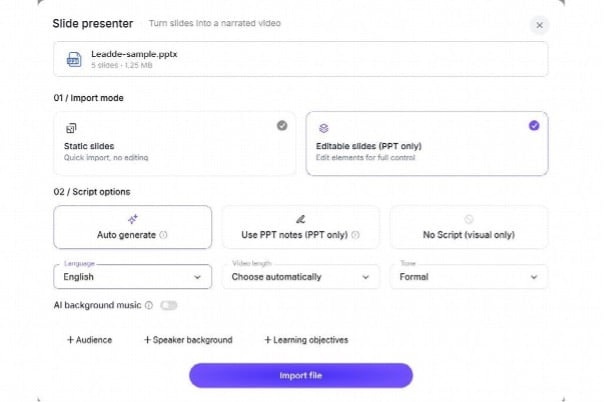
Each imported PowerPoint slide maps to an editable narration scene inside the Leadde workspace.
| Production requirement | Desktop screen recording | Scene-based slide-to-video workflow |
| Fixing a spec on one slide | Re-record the segment and manually splice the timeline | Swap the slide or edit the text and re-export in minutes |
| Audio clarity across authors | Depends on each engineer’s microphone and room | Uniform voice pacing and level audio across every module |
| Pauses and callout timing | Tied to live speaking speed and mouse movement | Controlled per slide through clean script phrasing |
| Regional language versions | Requires separate live speakers for each language | Translate the scene scripts while keeping slide timing intact |
Four steps to convert presentation slides into video briefings that stay maintainable
Converting an engineering or product deck into a watchable video works best when you optimize both the slide density and the per-slide narration before hitting export.
1. Strip speaker notes down to spoken sentences
Slide notes are often full of shorthand fragments, raw URLs, and internal reminders that sound unnatural when read aloud. Before importing or generating narration, rewrite each slide’s script into two or three clear, complete sentences. Aim for forty-five to sixty words per slide so each visual stays on screen for roughly twenty to twenty-five seconds.
2. Isolate complex diagrams into sequential slides
In a live meeting, a presenter might spend five minutes talking over a single crowded architecture slide while pointing with a cursor. In an asynchronous video, a static screen that does not change for five minutes causes viewers to lose track of which component is being discussed.
Duplicate complex diagram slides into two or three sequential steps, highlighting one subsystem or signal path per slide. This gives the video natural visual progression without requiring custom motion graphics.
3. Keep presenter overlays out of critical data zones
If you include an on-screen presenter avatar to guide viewers through the briefing, reserve a consistent corner of the 16:9 frame, typically the bottom right, so the presenter never covers port labels, code blocks, or performance charts. For dense schematic slides, switch to full-screen slide view with voiceover narration, then bring the presenter back for summary and transition slides.
4. Version-control the source deck and script together
Store the source .pptx file and the finalized scene scripts in the same repository or documentation folder as the exported .mp4 video. When a hardware revision or software release changes two slides next month, any team member can open the project, update those two scenes, and publish a fresh video without tracking down the original presenter.
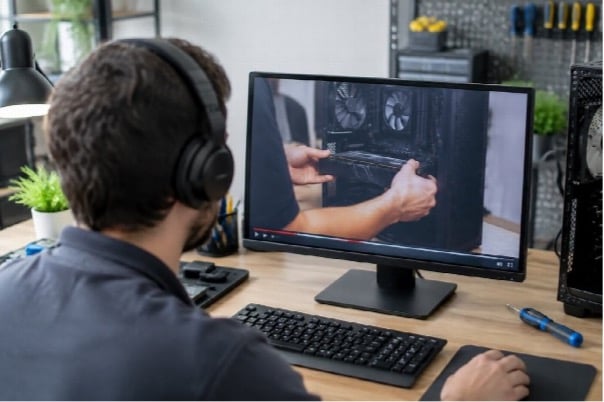
Field and lab engineers can verify step-by-step video briefings directly at the workbench when diagrams remain legible at 1080p.
Practical checks before publishing your video briefing
Before posting the exported video to your documentation portal or training library, run a quick three-point quality check:
- 1080p legibility on a laptop screen: Watch the video in a standard browser window without maximizing it. Every diagram label, pin number, and table row should be readable at a glance.
- Technical acronym pronunciation: Listen to model numbers, protocol names, and units of measurement to make sure they are pronounced the way your engineers actually say them in the lab.
- Chapter timestamps in the companion doc: Add three to five timestamp links in the video description or wiki page so technicians troubleshooting a live issue can jump straight to the exact slide they need.