Recover Files from Formatted SD Card: Complete Guide to Restore Data
An SD card is a small and valuable portable storage device used to save media and documents. Users often feel worried when SD cards are formatted, and precious memories seem gone. This moment can frustrate anyone and put them under stress. However, you can recover files after format Windows 10 with the various methods. This file recovery guide helps everyday people understand safe ways to recover essential data.
Part 1. Is It Possible to Recover Deleted Files from a Formatted SD Card?
Part 2. Common Scenarios That Lead to SD Card Formatting
Part 3. Best Way to Recover Files: Use SD Card Recovery Software
Part 4. Other Windows and Mac Solutions for Recovering SD Card Files
Conclusion
Part 1. Is It Possible to Recover Deleted Files from a Formatted SD Card?
You can recover files from formatted hard drive if new data hasn’t covered the old ones. The system removes file references, but the actual data usually remains until overwritten when a card is formatted. Plus, this chance of recovery decreases if the card is used immediately after formatting.
Moreover, stopping all new file activity protects the remaining data. Even simple, quick formatting leaves a high possibility of retrieving lost files. Additionally, the type of format, card health, and previous usage directly affect how much data can be retrieved. Therefore, careful handling immediately after formatting increases success.
Part 2. Common Scenarios That Lead to SD Card Formatting
Sometimes SD cards get formatted due to errors or intentional actions. This section explains some reasons that help users recover files from formatted SD card:
1. New SD Card: New SD cards need formatting before first use in cameras. Formatting ensures correct structure, file system, and device compatibility.
2. Space Wipe: Users format cards to remove all old photos or videos. This restores full storage, freeing space for new files.
3. Device Switch: Changing the card to another device often triggers a format request. Different devices may need a compatible file system structure.
4. Error Message: Error prompts like “SD card must be formatted” occur frequently. File corruption or the RAW state usually causes such alerts.
5. Card Failure: Worn-out or fake SD cards sometimes fail and request formatting. Users face repeated read/write issues or slow performance.
Part 3. Best Way to Recover Files: Use SD Card Recovery Software
Many people get stressed after losing essential data and don’t know how to recover files from formatted hard drive. One of the best tools for this task is Recoverit data recovery, which offers fast and safe file recovery. Recoverit’s new V14, offering AI-powered recovery from 1M+ storage devices, including SD cards. This dedicated tool supports data recovery from BitLocker-encrypted drives for secure Windows devices.
Moreover, you can recover files from hardware and hybrid RAID arrays on Windows systems. Additionally, users can restore 1000+ file types, including media or documents, from corrupted memory cards or SD cards. While recovering all of your data, it remains safe without modifying the original files or storage media.
Key Features
1. Crashed Disk: Connects crashed hard disks to another computer and recovers files seamlessly.
2. NAS Recovery: Recovers data from NAS hard drives without dismantling the server hardware physically.
3. RAW Files: Recovers data from drives that suddenly appear as RAW on Windows or Mac.
Guide to Recover Accidental Data From External Devices or SD Cards Using Recoverit
Upon understanding how Recoverit helps recover accidentally deleted data, go through the guide to figure out its complete workflow:
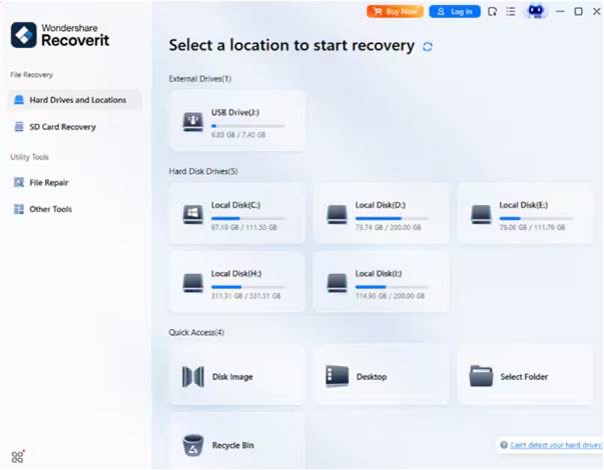
Step 1. Choose SD Card Drive
As you access the recovery tool, choose the SD card drive where you want to recover lost data.
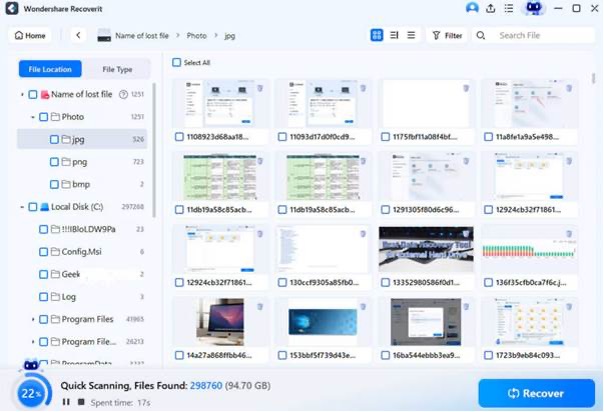
Step 2. Start the Scan and Recover Lost Files
Following this, the tool starts a deep scan of the selected drive, where you need to hit the “Recover” button for initiating recovery.
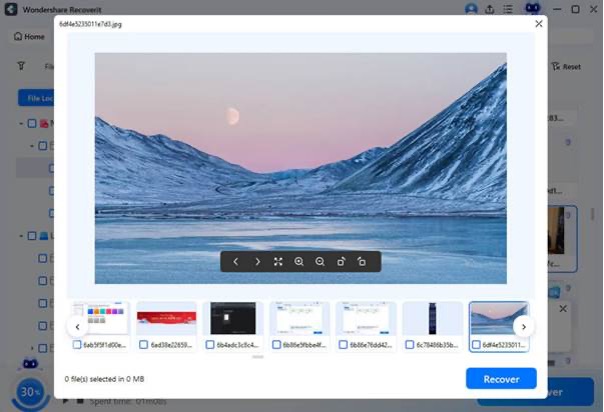
Step 3. Preview and Export the Result
Once recovered successfully, preview the files, and after choosing the right options, click “Recover” to save them.
Part 4. Other Windows and Mac Solutions for Recovering SD Card Files
Some built-in options can also help recover files from formatted SD card safely. The methods below work on Windows and Mac systems and require careful following:
1. Restore the Previous Backup
Restoring a previous backup is safest after formatting or severe SD card damage. Backups store clean copies, helping file recovery when you need to recover files after format Windows 10. However, this method works only if the SD card files were backed up beforehand. Thus, follow the instructions below to restore the previous backup via File History:
Step 1. To initiate, Press “Windows + I” together and go to the “Update & Security” option.
Step 2. Afterward, click the “File Backup” section and press the “Restore” button.
2. Use CHKDSK in a Command Shell
CHKDSK in a command shell also checks the SD card file system errors. It scans for lost clusters and bad sectors, then moves data to safe spots. However, it does not truly recover files from formatted hard drive devices. It creates fragment files in folders, not execute full recovery. Regardless, take guidance to understand how CHKDSK can help in file restoration with the steps below:
Step 1. First, open a “Command Prompt” from the “Start” menu and choose “Run as Administrator.”
Step 2. After accessing it, type “chkdsk H: /f /r /x” and replace H with your SD card drive letter.
3. Use Terminal (Mac)
Terminal on Mac accesses SD cards at a deep level to uncover hidden data. It clones the entire card to an image file, protecting originals from changes. Moreover, commands such as fsck_msdos can fix minor file errors, restoring the content’s readability. Additionally, these tools inside help recover files from formatted SD card effortlessly. Let’s explore the steps below to recover files using Terminal on Mac:
Step 1. Connect the SD card to your Mac, but do not open it, and go to “Applications.” Navigate to “Utilities” and access “Terminal” for command-line recovery.
Step 2. Initially, type “diskutil list” and locate your SD card “dev/disk2”. This ensures you target the correct drive for recovery.
Step 3. Now, enter “sudo dd if=/dev/disk2 of=~/Desktop/sdcard.img” and replace “/dev/disk2” with your SD card ID.
Step 4. Finally, type “sudo fsck_msdos -y /dev/disk2” to repair file problems. This makes Windows-formatted FAT or exFAT SD cards readable again.
Conclusion
In conclusion, losing SD card data can feel shocking, but recovery is still possible. Understanding formatting causes and recovery choices improves success and prevents further damage. Therefore, users should stop using the card and select safe methods. Sometimes built-in tools help, yet results stay limited. If you need a reliable tool to recover files after formatting Windows 10, Recoverit offers a secure and complete recovery solution.