Smart Game Booster Review: Does It Really Improve Gaming Performance?
I kept losing ranked matches last month because of random FPS drops and annoying lag spikes. After searching for a reliable game optimizer and comparing what other players were saying, I decided to put Smart Game Booster to the test myself, instead of just reading other reviews online. I wanted to know if this tool could actually fix stutters, high ping and slow load times or if it was just another optimizer that promises a lot and delivers little.
After using it for two weeks on my own gaming rig, I have a clear picture of what it does well and where it falls short. Here is my honest take on whether this tool is worth installing.
What Is Smart Game Booster
Smart Game Booster is a gaming optimization tool built by iTop Inc. The current version is 6.0, and it runs on Windows 7 through Windows 11. It combines several features into one app, including network acceleration, hardware boosting, driver updates, and game compatibility checks. The file is about 88 MB, and it is free to use.
Setting It Up Was Quick
Getting started took only a few minutes on my machine. Here is exactly what I did:
- Step 1: Open Smart Game Booster. After downloading and installing the app, I launched it on my Windows PC.
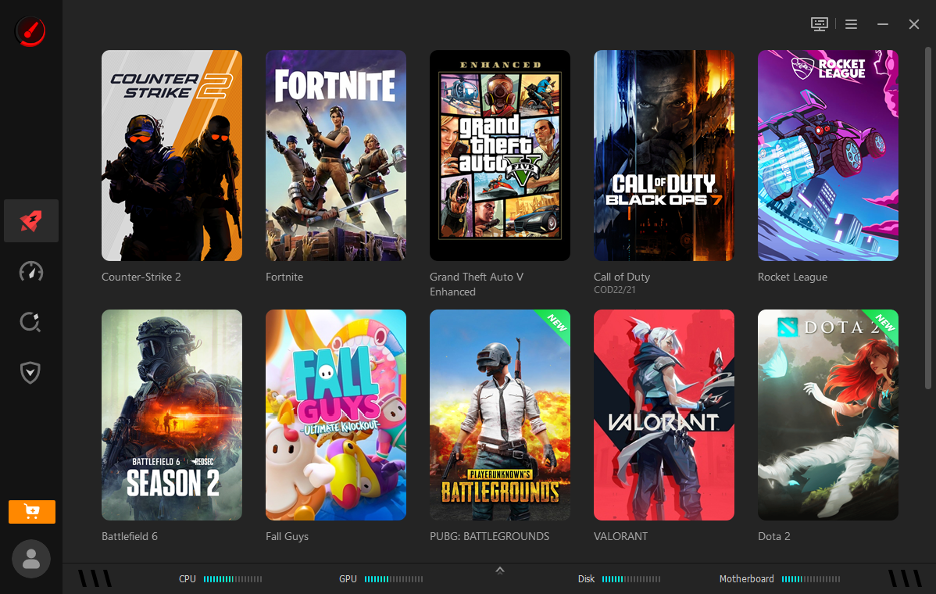
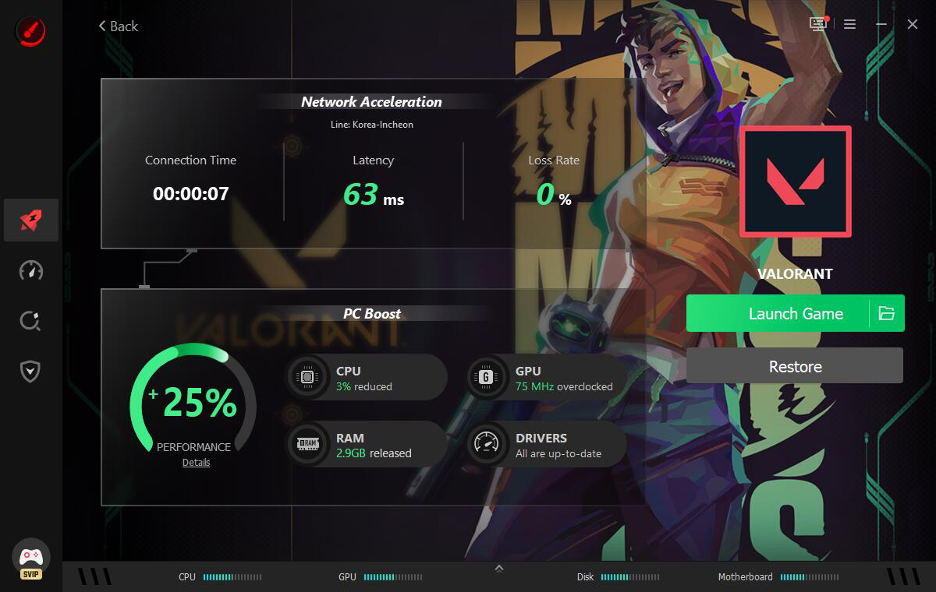
- Step 2: Choose a game to boost. I picked Valorant from my library so the tool could boost my PC performance and internet connection at the same time.
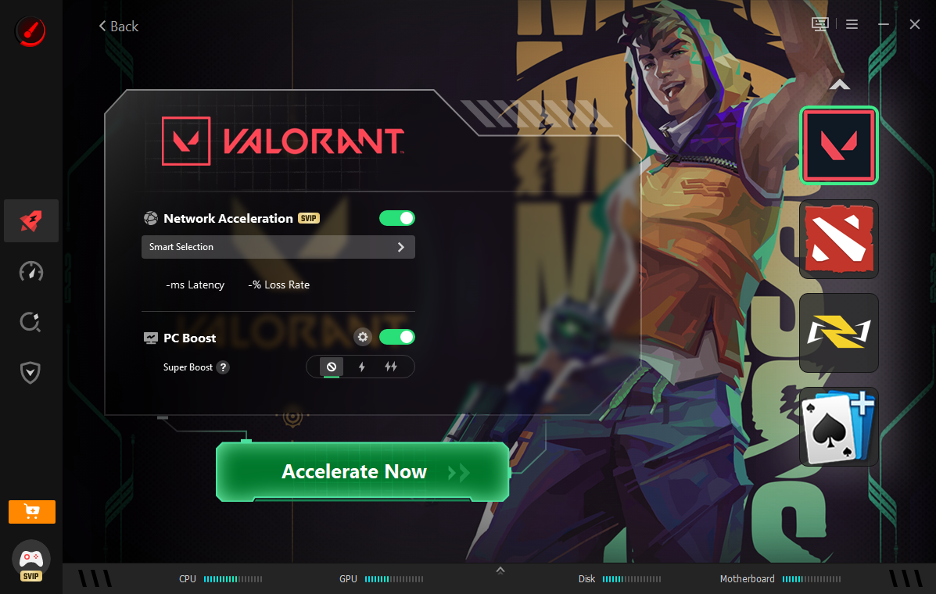
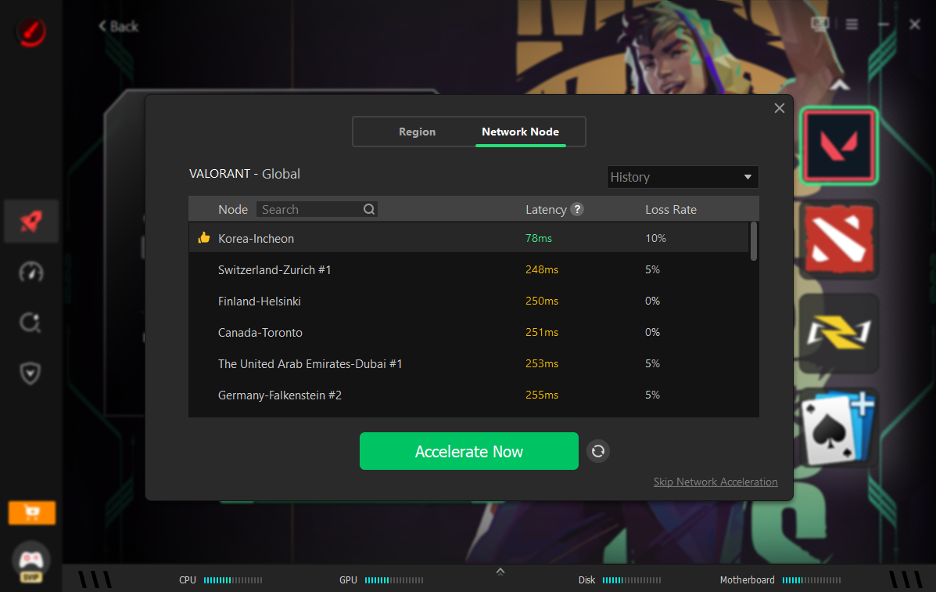
- Step 3: Turn on Network Acceleration. I connected to one of the 500 plus game servers to lower my ping and reduce packet loss.
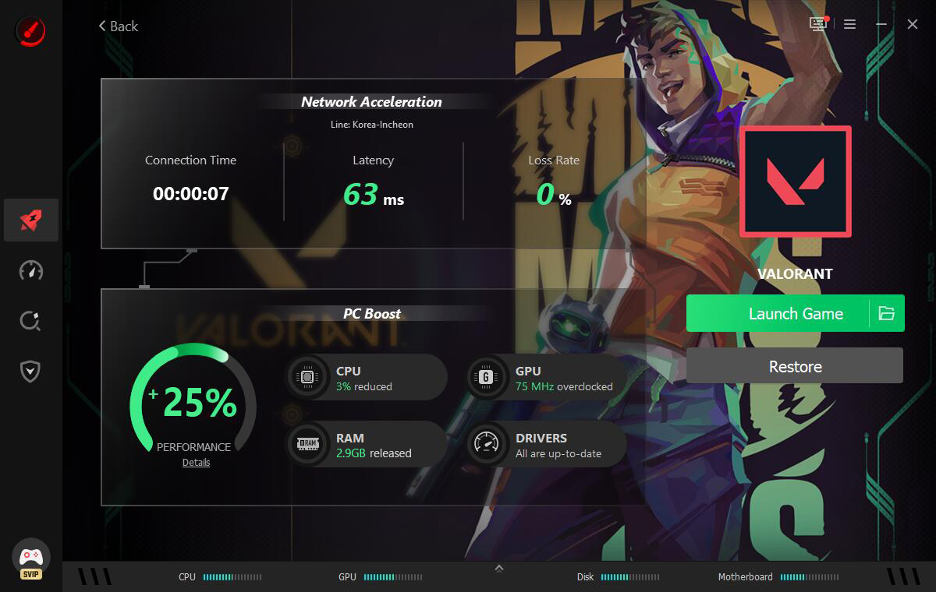
- Step 4: The app optimizes system performance by clearing background RAM and applying mild GPU tweaks, while streamlining network routing for smoother overall gameplay.
My Performance Results
I ran a few matches before and after turning on the boost feature. My average FPS in Valorant went from around 90 to nearly 130 on high settings. My ping dropped noticeably too, especially during peak hours when servers usually get congested.
I also tried the Can I Run It tool to check compatibility for a new game before buying it. That saved me from wasting money on a title my PC could barely handle. It is worth noting the 120% FPS and 80% ping figures come from the developer’s own testing rather than an independent lab, so your results may differ based on your setup and connection.
I also kept an eye on temperatures using the Real Time Monitor while running Super Boost. My GPU stayed within a safe range even after the overclock, which put my mind at ease. Still, I would suggest checking your own temperatures the first few times you try it.
Pros Of Using This Game Booster
- One-click optimization saves time before every match
- Network Acceleration genuinely reduced my ping during busy hours
- Can I Run It database covers over 160000 games and thousands of GPUs and CPUs
- The built-in customizable overlay can track live FPS, CPU/GPU temperatures, and usage rates without leaving the game.
- Completely free to download and use with no hidden paywall
Cons Worth Knowing Before You Install
- Some background features run automatically, and I had to turn a few off manually.
- Actual results vary a lot depending on your hardware and internet provider
- Network acceleration is a paid feature
- FPS gains were noticeable but did not hit the advertised numbers in every single game I tested
Who Should Use This Tool
Not every gamer needs an optimizer, and I get that. If your PC already runs smoothly and your internet is stable, you may not notice much difference. But if you play competitive titles like Valorant, CS2, or Apex Legends where every millisecond of ping matters, this kind of tool starts to make sense.
I would also recommend it to anyone on an older laptop or a budget desktop. The one-click Boost feature frees up RAM and CPU resources that background apps quietly eat up. That alone made loading screens shorter on my setup and cut down on random stutters during long sessions.
Casual players who just want fewer crashes and a cleaner system might get the most value from the Performance section. It handles cleanup, driver updates, and game defrag without much manual work on your end.
Is It Worth Trying
Based on my two weeks of testing, this app delivered real improvements for me. My FPS increased, and my ping dropped during evening gaming sessions. It is not going to turn a weak PC into a gaming beast overnight, though. Think of it as a solid Game Booster for squeezing more performance out of hardware you already own rather than a magic fix.
Final Thoughts
If you are dealing with lag, stutters, or high ping during your matches, trying an FPS Booster like Smart Game Booster might be worth it. Every PC and network setup is different, so your mileage may vary from mine.
Ready to see your own FPS numbers change? Download Smart Game Booster today and put it to the test on your own rig.