
Aggressive Windows Background Services Are Quietly Choking Your Esports Frame Rates
You buy a decent rig, tune the in-game settings, maybe even spring for a 240Hz monitor — and you’re still getting 1% lows that make your CS2 peeking feel like watching a slideshow. The culprit usually isn’t your GPU. It’s Windows doing its thing in the background while you’re trying to win a round.
This isn’t hypothetical. A user on Microsoft’s own support forum described the exact scenario in early 2025: after upgrading an ASUS ROG Zephyrus M15 from Windows 10 to Windows 11, FPS, latency, and ping all got “significantly worse,” and Task Manager showed 48 separate instances of svchost.exe running simultaneously. That’s not a bug report — that’s Windows 11 behaving normally.
Why do background services hurt competitive gaming more than casual play?
The problem isn’t raw throughput. Your RTX 5080 can handle the render workload. The issue is frametimes — specifically the 0.1% and 1% lows that create visible stutters when a background process suddenly grabs CPU cycles. In a ranked CS2 match or a VALORANT clutch situation, a 40ms frametime spike at the wrong moment is a dead round.
Microsoft acknowledged this directly in late 2025, committing to improvements in background workload management, power and scheduling, and a cleaner graphics stack for 2026. The fact that they had to say this out loud tells you everything about how bad the baseline was. Xbox Full Screen Experience testing on Windows handhelds showed RAM usage dropped 9.3% and FPS improved up to 8.6% when background overhead was properly suppressed. That’s not a driver update — that’s the OS getting out of its own way.
Players who want to track which teams actually run optimized competitive setups, compare hardware configs, or follow how pro players at events like IEM Cologne 2026 configure their machines can find aggregated resources through a competitive gaming hub like EGamersWorld, which covers both hardware setups and tournament meta on one platform.
Which Windows services are actually eating your frametimes?
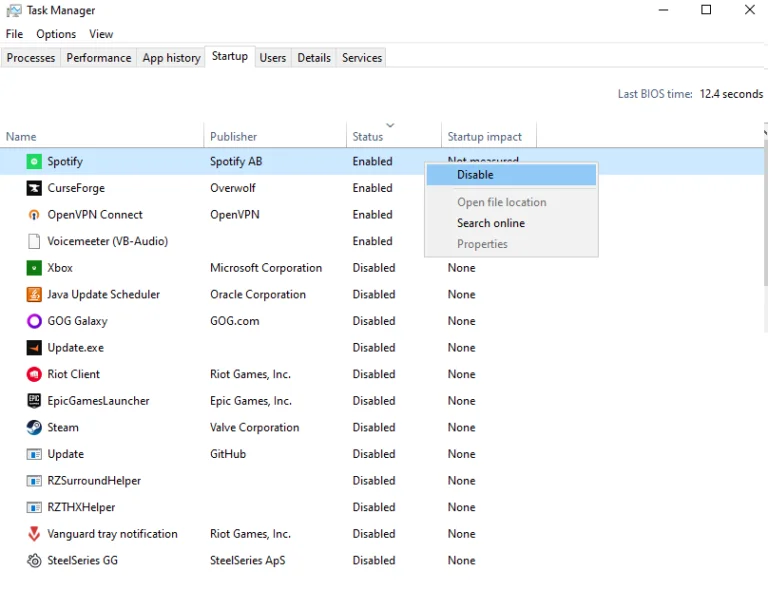
Not all background processes are equal. Some are idle until triggered; others run on tight loops that interrupt your game thread constantly.
SysMain (formerly Superfetch) preloads frequently used apps into RAM. On a gaming PC with 32GB, it’s actively competing for memory bandwidth. Disabling it via Services (services.msc → SysMain → Startup type: Disabled) consistently reduces RAM contention during game sessions.
Windows Search indexing is the worst offender for disk spikes. It runs at low priority in theory, but on NVMe drives it still generates I/O that causes frametime variance. If you search your PC rarely, there’s no reason for it to index continuously.
Connected User Experiences and Telemetry (DiagTrack) runs even when you’ve “opted out” of data collection. It pings Microsoft servers, writes to disk, and wakes up unpredictably. Stopping the service and setting it to Disabled has zero impact on gaming functionality.
NVIDIA Telemetry Container is easy to miss. It’s not part of Windows, but it auto-installs with GeForce drivers and runs as a background service. Check for NvTelemetryContainer in Services and disable it — your GPU won’t notice, and your frametimes might.
Should you just run a debloat script and call it done?
The temptation is real. Scripts like Win11Debloat can strip dozens of background tasks in minutes, and community testing confirms they produce a calmer system with fewer random disk usage spikes and more consistent frametimes, even if the raw FPS ceiling stays similar. But blindly running PowerShell scripts that touch system services carries genuine risk. Windows Security Center, Windows Update, and certain networking services are not safe to disable.
The manual approach takes 20 minutes and lets you control exactly what gets turned off. Start with Task Manager’s Startup tab, kill anything that isn’t a game launcher or audio driver, then move to services.msc for the heavier work. SysInternals Autoruns gives an even deeper view — it shows you startup entries from leftover software you’ve already uninstalled.
Does Windows 11 Game Mode actually help?
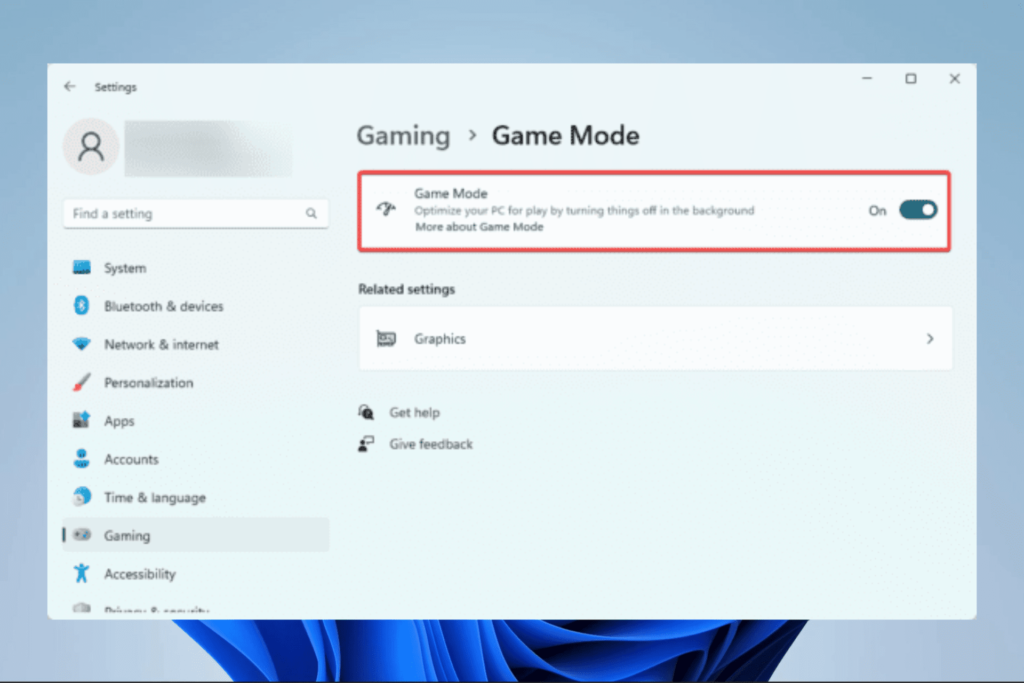
Game Mode reduces background interruptions without invasive changes and should be enabled early in any tuning session via Settings → Gaming → Game Mode. It’s not transformative on its own, but it costs nothing and stacks with the manual service disabling above.
The bigger setting is the power plan. On medium-to-high-end rigs, High Performance is the floor — but the Ultimate Performance plan, unlocked by running powercfg -duplicatescheme e9a42b02-d5df-448d-aa00-03f14749eb61 in an elevated command prompt, goes further by removing micro-latency introduced by CPU frequency scaling. Use it plugged in only; on a gaming laptop on battery it will drain the pack fast and potentially throttle.
The realistic outcome
You are not getting 30 extra frames from this. Anyone promising that is selling something. What you’re actually targeting is consistency — closing the gap between your average FPS and your 1% lows. On a machine that previously showed 20–30ms frametime spikes during Windows Update checks or telemetry writes, proper service management can bring those spikes down to 3–5ms. In fast-paced esports titles, that’s the difference between a stutter you feel and one you don’t.
Check Task Manager’s Performance tab while in-game, watch the CPU graph for irregular spikes, and you’ll see exactly which processes are the problem. The culprit is almost never your GPU.