Brief Guide to Enable an SSL Certificate on iPhone or iPad
There is no better way of preventing the unauthorized access or misuse of personal data than by safeguarding it. One of the most preferred tools for safeguarding personal data to minimize the risks of fraud, potential harm or identity theft is an SSL certificate.
But how do you enable an SSL certificate on iPhone or iPad? This mini-guide explains what an SSL certificate is, how it works and how to enable SSL certificate on your iPhone or iPad. Read on!
What is an SSL Certificate and how does it Work?
SSL, also known as Secure Socket Layer certificates play a key role in digital privacy and security. If you’re not informed on what they are or how they work, you may wonder; what is an SSL certificate and how does it work?
Quite simply, an SSL certificate is a digital certificate that uses encryption to protect the sensitive data shared between a user’s device and a website’s data. But they do not just encrypt the data exchanged. SSL certificates also validate the authenticity of data requests.
Think of it this way; if you enable an SSL Certificate on iPhone or iPad, you can send emails and the SSL certificate encrypts the data you share to ensure they’re unreadable to anyone who may try to intercept the data during transit. This is achieved through military-grade 256-bit encryption which is designed to ensure high-security standards.
Thanks to this encryption technology, it doesn’t matter even if an intruder manages to intercept the data. They won’t be able to decipher it without the decryption key that is held by the recipient.
Now, to be able to enable an SSL certificate on different servers, you will need to firstly acquire the certificate from an accredited certificate authority like Comodo SSL, for example. A Certificate Authority is an entity that helps in the validation of identities. After validation, it binds them to cryptographic key pairs using digital certificates.
If you handle sensitive information on your website and several subdomains, you can benefit from a wildcard certificate as these certificates are designed to provide protection for multiple subdomains.
How to Enable SSL Certificate on an Incoming Mail Server
First things first; if you’re using IMAP, set Server Port 993. For POP, set Server Port 995. Here are the steps to enable SSL certificate on an incoming mail server;
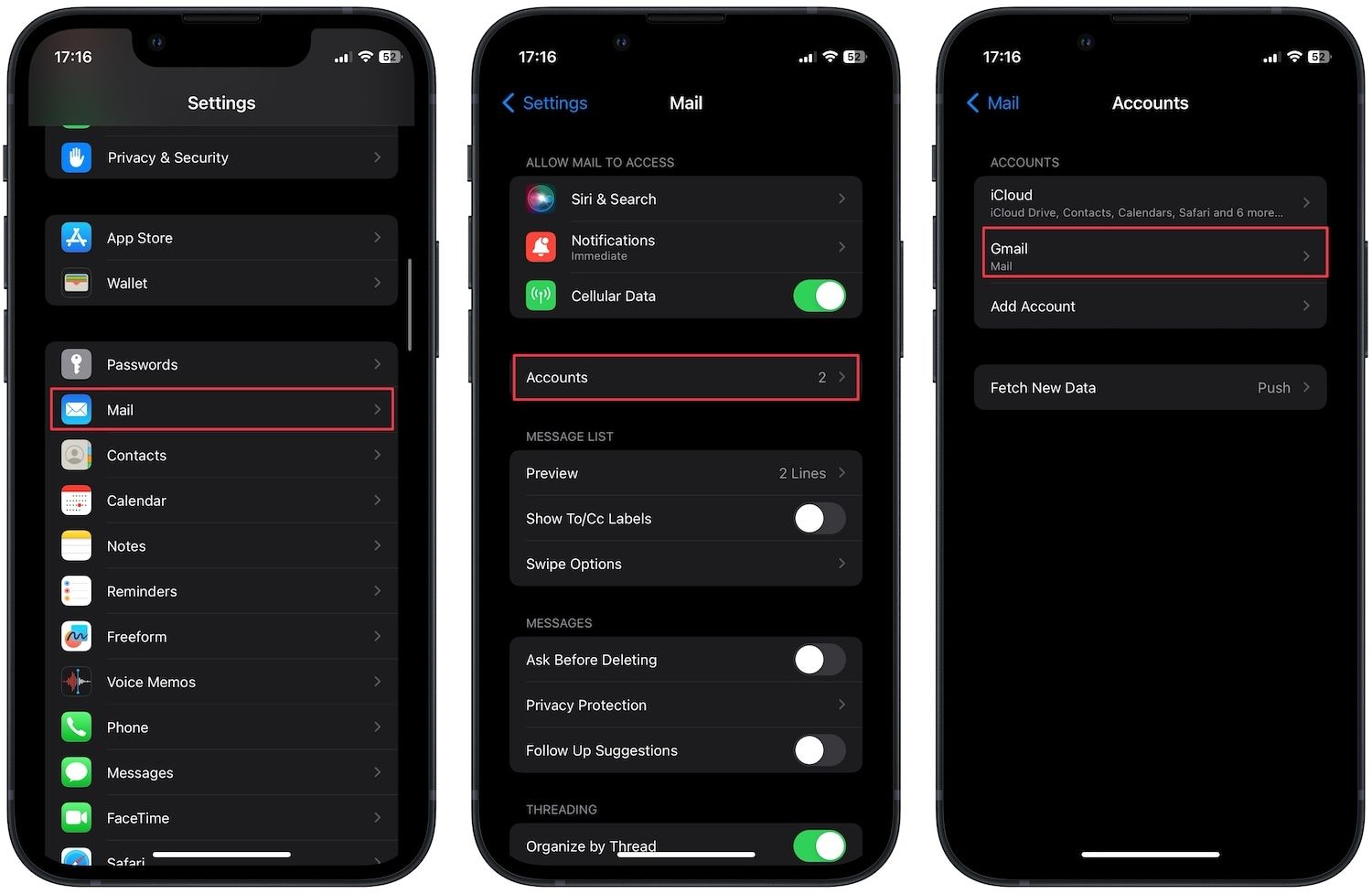
- Step 1: Access your email settings via the Homepage. When on the homepage, navigate to Settings then select Mail.

- Step 2: When there, click Accounts as shown below;

- Step 3: Select Your Email Account (e.g., Gmail)

- Step 4: Select the specific email account that you want to secure with SSL.

- Step 5: On the new window, select ‘Advanced’ settings

- Step 6: Now, enable an SSL Certificate on iPhone or iPad by activating ‘Use SSL’ within the ‘Incoming Settings’ section as shown below;

How to Enable SSL on an Outgoing Server
- Step 1: From the Homepage launch ‘Settings’ and then select Mail

- Step 2: From the new menu, click ‘Accounts’

- Step 3: Under accounts, choose ‘Gmail’ and then choose the specific email account for SSL installation.

- Step 4: Navigate to Outgoing Mail Server and tap on SMTP.

- Step 5: Locate the Primary Server section with the domain server name.

- Step 6: Activate ‘Use SSL’ and adjust the Server Port to 465.

- Step 7: Tap ‘Done’ to save changes.
How to Install an SSL Certificate as a Trusted Root CA
As is the case with enabling SSL for mail servers, installing an SSL certificate as a Trusted Root CA shouldn’t be as overly frustrating as it may seem. Follow the steps below to install an SSL Certificate as a Trusted Root CA;
- Step 1: Open the Certificate Site: You will want to use the main browser for iPhone or iPad, Safari browser for this process. After launching the Safari on your iPhone, visit the cert.n4l.co.nz website.
- Step 2: Download the Certificate: When on the Certificate Site, click the “Download N4L Certificate” button to initiate the download process.
- Step 3: Authorize Profile Access: Your device should prompt a message that seeks authorization to access the configuration profile. Tap “Allow” to proceed.
- Step 4: Review the Profile: After authorization, you should see a message that instructs you to review the profile in the Settings app for installation.
- Complete Installation: After reviewing the profile in your Settings app, close the message to finish the Profile Download process.
How to Install a Profile
To install a profile on your iPhone or iPad, follow these steps:
- Step 1: Access Profile Download: You will need to open the Settings app and then tap on “Profile Downloaded”. You should be able to see this option under your user details as shown below;

Source: N4L
- Step 2: Initiate Installation: Tap the “Install” button to start the profile installation process.
The final crucial step after you enable an SSL Certificate on iPhone or iPad is to ensure the trustworthiness of the SSL certificate on your device. This too is simple. After the manual installation of the SSL certificate or downloading a profile via email/website, follow these instructions to enable SSL/TLS trust settings:
- Step 1: Navigate to Certificate Trust Settings: In Settings, click on “General,”. On the corresponding window, select “About.” After that, proceed to “Certificate Trust Settings.”
- Step 2: Enable Root Certificates: On this section, you should see a list of installed root certificates under “Enable full trust for root certificate.”
- Step 3: Trust the Certificate: Toggle the switch next to the desired certificate to enable trust for the certificate. And that’s it; you’ve enabled SSL trust settings!
How do I View Certificates on my iPhone?
Unauthorized or expired certificate might compromise secure connections. So, you may want to view the certificates on your iPhone to be sure. To view installed certificates, you can;
- Access Certificates: On your iOS device, open “Settings” and then navigate to “General.” When there select “Profiles.” If you can’t see “Profiles” then no certificate has been installed on your device.
- Review the Certificates: When you open the Profiles section, you should be able to see the installed electronic certificates. The list should also include downloaded root certificates and user certificates.
- Check Expiry: To ascertain validity of a certificate, you will need to select the specific certificate you’re checking the expiry for. After selecting the certificate, tap “More details” to view its expiration date.
The Bottom Line
Enabling SSL certificate on your iPhone or iPad is a key step to ensuring the privacy of your private data. While the process may seem daunting, it is relatively quick and you can do it all in one sitting. To ensure that you’re using legitimate certificates, see to it that you only choose SSL certificates from reputable Certificate Authorities.