Building a High-Performance PC on a Budget: Smart Ways to Cut Costs Without Cutting Corners
Building your own PC can be an enriching and cost-effective venture, especially if you’re aiming for high performance on a budget. Everyone dreams of a powerhouse machine without emptying their wallet. Here’s how you can achieve that goal. Start by checking out Latest Deals discount vouchers for potential savings on parts.
Prioritize Requirements
Before you chase deals, get brutally clear on what this PC is for. Budget builds go off the rails when “I might stream someday” sneaks into the cart as a capture card, an AIO cooler, and 64GB of RAM.
Analyze Needs vs. Wants
Start with your top 1–2 use cases, then spend money where it moves the needle:
- Gaming (most people): Your priority is usually GPU first, then a CPU that won’t hold it back, then enough RAM and a fast SSD. RGB, premium motherboards, and “extreme” cooling are wants.
- Video editing / content creation: You’re often balancing CPU cores, RAM capacity, and fast storage (NVMe). GPU matters too, but only up to what your apps actually use.
- General use / school / work: Don’t overbuy. A solid mid-range CPU, 16GB RAM, and an SSD will feel “fast.” Spending big on a GPU for spreadsheets is just donating money to silicon.
A simple way to stay disciplined: write down three non-negotiables (e.g., “1080p 144Hz gaming,” “quiet,” “fits in a small case”) and two nice-to-haves (e.g., “Wi‑Fi on the motherboard,” “white build”). If the nice-to-haves threaten the budget, they’re the first to go.
Finally, budget for the stuff that’s easy to forget: Windows (if needed), extra fans, a decent power supply, and enough storage. Nothing kills “budget performance” like skimping on the boring parts and paying for it later.
Choosing the Right Components
This is where most “budget” builds accidentally get expensive. The trick is simple: spend hard on what actually moves performance, and go sensible everywhere else.
As Tom Church, Co-Founder of LatestDeals.co.uk, the discount code platform, puts it: “The best savings come from knowing what to prioritise—get the core components right, then wait for the right deal on everything else.”
CPU and GPU Deals
Your GPU usually does the heavy lifting for gaming and anything graphics-heavy, so it tends to deserve the biggest slice of the budget. The CPU matters too—but you don’t need the top chip to get top-tier results unless you’re doing serious production work (or chasing ultra-high FPS in competitive games).
- Aim for the best performance-per-pound tier, not the flagship. Current-gen midrange parts are often the sweet spot, but previous-gen “high-end” can be even better value if the pricing is right.
- Watch for platform traps. A “cheap” CPU can cost more if it forces you onto a pricier motherboard or DDR5 when DDR4 would’ve been fine. Total platform cost > CPU price tag.
- Don’t overbuy cores you won’t use. Most games still care more about strong per-core performance than having a million cores. If your workload is streaming + gaming, video editing, 3D work, then extra cores start paying rent.
- Be deal-smart, not brand-loyal. In any given month, one side will have the better value. Compare benchmarks for your actual use case, then buy the better deal.
- Sanity-check pairing. A monster GPU with a bargain-basement CPU can bottleneck; the opposite wastes GPU potential. Balanced builds feel faster than lopsided ones.
Quick rule of thumb: gaming build = prioritize GPU, creator build = split budget more evenly between CPU/GPU.
RAM and Storage
These are the parts that are easy to overspend on because the upgrades sound dramatic (“32GB!” “7,000MB/s!”). Keep it practical.
- RAM: 16GB is the baseline. It’s enough for modern gaming and general use.
- If you multitask hard (Discord + browser tabs + streaming + games) or do editing work, 32GB can be worth it—but only if it doesn’t steal money from the GPU.
- Don’t pay extra for tiny speed gains. Stable, compatible RAM at a reasonable speed beats premium kits you’ll never feel.
- Storage: SSD first, always.
- Put your OS and main apps/games on an SSD—that’s the single biggest “snappiness” upgrade in a PC.
- A 1TB SSD is a comfortable starting point if you can swing it; otherwise 500GB works, just expect to manage space.
- NVMe vs SATA: NVMe is great and often priced close enough to justify, but for most people, SATA SSD vs NVMe isn’t night-and-day in real use. Buy whichever is the better deal from a reputable brand.
- Skip luxury storage features unless you need them. Ultra-high-end Gen5 drives are cool on paper, but they’re rarely the best use of budget money.
Bottom line: buy the parts that change the experience (GPU, sensible CPU, SSD), and keep the rest efficient and compatible. That’s how “budget” becomes “smart” instead of “cheap.”
Timing Your Purchases
If you want a high-performance build on a budget, when you buy matters almost as much as what you buy. PC-part pricing isn’t stable—some weeks are normal, some weeks are chaos. A little patience can shave a surprising amount off your total.
Key Buying Windows
Seasonal Sales
Big sales events are the obvious wins:
- Black Friday and Cyber Monday are the headline acts.
- You’ll also see solid discounts during:
- Back-to-school periods
- Post-holiday clearances
Parts that most often get clean markdowns:
- CPUs
- SSDs
- Monitors
- Peripherals
A quick note on GPUs:
- GPUs can drop, but deals are less predictable
- Discounts are often tied to limited-stock situations
Buy in Waves (Don’t Panic-Buy)
You don’t need to purchase everything on the same day. Instead:
- Stagger purchases and grab parts when they hit your target price.
- This works especially well for items with frequent price swings:
- Storage
- RAM
- Cases
One important caveat:
Don’t buy core parts too far apart if you’re concerned about return windows. Nothing’s worse than discovering a faulty motherboard after the return period ends because you were still waiting on a GPU deal.
Watch Market Trends
Prices move with new launches, competition, and supply shifts. Two patterns show up repeatedly:
- New-gen launches improve last-gen value
When a new CPU or GPU line drops, previous-gen parts often become the sweet spot:- Performance is still excellent
- Retailers start clearing shelves
- GPU pricing is moodier than everything else
GPUs can spike for reasons that have nothing to do with you. If you see a “good enough” GPU at a genuinely fair price, it’s often smarter to buy than to gamble for a slightly better deal later.
Use Price Tracking and Alerts
Don’t manually refresh shopping tabs like it’s 2012. Instead:
- Set price alerts
- Track price history
- Compare across multiple sellers
- Check voucher sites and promo codes right before checkout
Sometimes you can stack a discount on top of an existing sale price and bring the total down more than expected.
Bottom Line
- Set a target price for each part
- Wait for it
- Pounce when it hits
Budget builds aren’t about being cheap—they’re about being strategic.
Explore Used or Refurbished Options
Buying used parts is the fastest way to shave serious money off a build—sometimes 20–50%—without tanking performance. The trick is knowing what to buy used, where to buy it, and how to avoid sketchy listings.
What’s safe to buy used (usually)
- GPU (with care): Biggest savings live here. Look for clear photos, a specific model name, and proof it works (benchmark screenshot, timestamped video, or return window). Prefer cards that haven’t been “repaired” or “reflowed.”
- CPU: CPUs rarely “wear out.” If the seller isn’t hiding bent pins (older Intel/LGA boards aside), it’s generally a solid used purchase.
- RAM: Low failure rates, easy to test, and often cheap second-hand.
- Cases and air coolers: Metal doesn’t go obsolete. Just confirm mounting hardware is included for your socket.
What to avoid used (or be extra picky)
- Power supply (PSU): This is the one part that can take your whole system with it. Unless it’s a known-quality unit, relatively new, and from a trusted seller with proof and warranty left—buy new.
- Storage (SSD/HDD): Used drives are a gamble. If you do it, check SMART/health stats immediately and don’t trust it with important data.
- Motherboards: Can be fine used, but they’re the #1 “mystery problems” part. Bent pins, unstable USB ports, half-dead DIMM slots—nightmare fuel. Only buy if there’s a solid return policy.
Refurbished beats random used
If you can swing it, manufacturer refurb or reputable-store refurb is the sweet spot: tested, cleaned, and often comes with a limited warranty. “Open box” can also be great—just verify all accessories are included (Wi‑Fi antennas, M.2 screws, brackets, etc.).
How to reduce risk in 5 minutes
- Only buy with a return window (or platform protection). Period.
- Ask one blunt question: “Any issues under load—crashes, artifacts, overheating?” If they dodge it, move on.
- Verify serials/warranty: Some brands allow warranty by serial number; others require original receipt. Know before you buy.
- Inspect on arrival: Check pins, ports, fan wobble, corrosion, and missing screws.
- Stress-test immediately: Run a CPU test, GPU benchmark, and a memory test while you still can return it.
Where to shop (rule of thumb)
- Best value: Local pickup (you can inspect, sometimes test).
- Best protection: Marketplaces with buyer guarantees and easy returns.
- Best middle ground: Reputable refurb outlets and manufacturer stores.
Used and refurbished parts aren’t “budget hack” territory—they’re just smart shopping. Be picky, test fast, and spend your risk budget on parts that won’t take the whole rig down if they fail.
DIY Assembly
Paying a shop to build your PC is basically paying someone else to do the fun (and surprisingly easy) part. If you’re trying to keep the budget tight, building it yourself is one of the cleanest ways to save money without sacrificing performance.
![]() Build It Yourself (Yes, Even as a Beginner)
Build It Yourself (Yes, Even as a Beginner)
Modern PC parts are modular and mostly foolproof. If you can follow a checklist and take your time, you can build a solid rig in an afternoon.
What You Actually Need
- Phillips #2 screwdriver
- Clear table + good lighting
- Patience (rushing is where mistakes happen)
The Simple Build Order
- Prep the motherboard outside the case
- Install the CPU, RAM, and M.2 SSD first.
- It’s easier when you’ve got space.
- Add the cooler
- Stock or aftermarket—do this before the board goes into the case if it gives you more room.
- Mount the motherboard in the case
- Line up standoffs.
- Don’t overtighten screws.
- Install the power supply (PSU)
- Route cables early so you’re not wrestling them later.
- Install the GPU
- Usually the last big component, and the easiest for a final “is everything seated right?” check.
- Basic cable management
- Keep cables out of fans.
- Don’t strain connectors.
“Don’t Mess This Up” Tips
- Plug your monitor into the GPU, not the motherboard (unless you’re using integrated graphics).
- If RAM/GPU isn’t showing up, reseat it.
- “Push until it clicks” is real.
- Use the correct motherboard standoffs.
- Screwing a board directly into the case is a great way to ruin a day.
If you want a cheat code: follow a reputable YouTube build guide step-by-step, using your motherboard manual as backup. The manual is boring, but it’s the truth.
Optimize Cooling Without Overspending
Cooling is an easy place to overspend because shiny coolers look “high-end.” In reality, most budget-to-mid builds are fine with sensible airflow and the right cooler choice.
Use the Stock Cooler When It Makes Sense
- Many CPUs include a stock cooler that’s totally fine at stock settings (no overclocking).
- If you’re not chasing max clocks, stock cooling keeps:
- Costs down
- Complexity low
When to Upgrade from Stock
Upgrade if:
- You’re using a hotter CPU model
- You care about quieter operation
- Your case airflow is limited
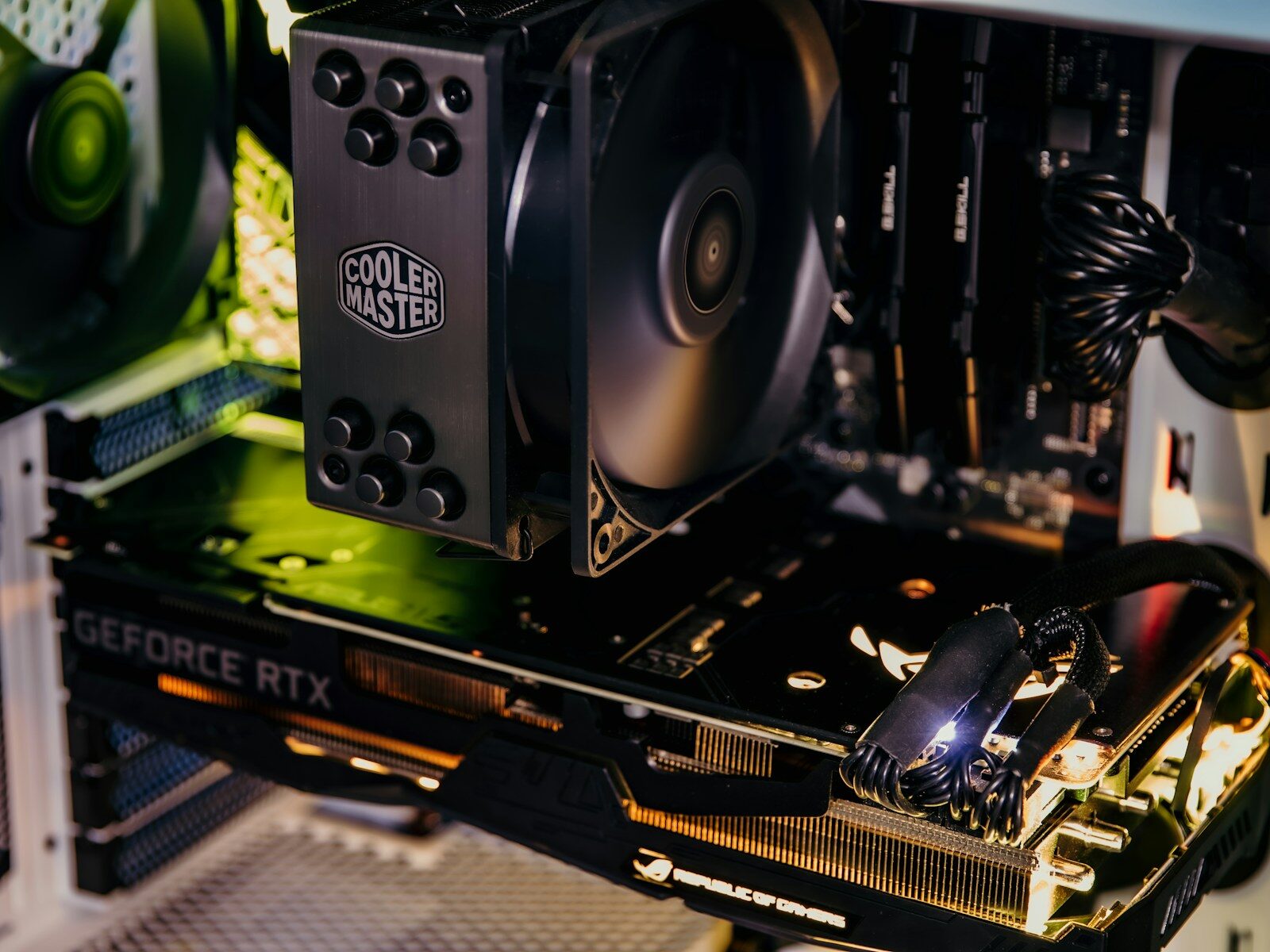
Best value move: a basic tower air cooler (cheap, reliable, and enough for most setups).
Liquid cooling: can be great, but it’s rarely the best budget performance choice.
Low-Cost Airflow Wins
- Prioritize a case with good ventilation
- A mesh front beats a solid slab
- Aim for a simple airflow pattern:
- Front/bottom intake + rear/top exhaust
- Don’t buy extra fans just because the internet told you to
- Two or three decent fans in the right spots beats a dozen random spinners
![]() Bottom Line
Bottom Line
- Build it yourself
- Keep cooling practical
- Spend the saved cash where it actually shows up:
- GPU
- CPU
○ SSD
Reuse and Recycle
Before you buy anything, look at what you already own (or can borrow). Reusing a few solid parts is the easiest way to shave off real money without touching performance.
Tom Church, Co-Founder of LatestDeals.co.uk, a discount code platform, says: “Start by shopping your own drawers first—reusing the right parts can cut a big chunk off the cost of a new PC build without sacrificing the performance you actually notice.”
- Parts from old PCs (the safe wins)
Some components age well. Others… not so much. Here’s what’s usually worth reusing:- Case: If it fits your new motherboard size (ATX/mATX/ITX) and your GPU length, you’re good. A case is a box; no need to “upgrade” it unless airflow is terrible.
- Storage drives: Old SSDs and hard drives are perfect as secondary storage. Even a smaller SSD can handle Windows + key apps while a new drive handles games/projects.
- Fans: Case fans don’t get slower because they’re “last gen.” If they’re quiet and spin smoothly, reuse them.
What to be careful with:
- Power supply (PSU): Only reuse it if it’s a quality unit, not ancient, and has the right connectors (especially for newer GPUs). If it’s 7–10 years old, bargain-hunting here can backfire.
- RAM: DDR4 and DDR5 aren’t interchangeable. If your old RAM is DDR4 and your planned build is DDR5, that “free” RAM isn’t free anymore.
- CPU/motherboard: These work as a pair. Reusing them can be great for a tight budget, but it can also lock you into slower upgrades.
- Spare parts scavenging (a.k.a. friendly looting)
Ask friends/family if they’ve got old gear sitting around. People keep surprisingly useful stuff in cupboards:- Extra SATA SSDs, hard drives, and cables
- A decent case they don’t want to carry through another move
- Wi‑Fi cards, fans, even a leftover CPU cooler
- An older GPU that still holds up for esports titles or as a temporary placeholder until prices drop
Quick rule: if a part helps you boot and run smoothly today, it’s worth considering—even if it gets replaced later. “Temporary” parts are a legit budget strategy.
- Do a fast compatibility check
Before you commit to reusing anything, confirm:- Motherboard size fits the case
- PSU has enough wattage and the correct power connectors
- Cooler fits the CPU socket and case height clearance
- Storage interface matches (SATA vs M.2 NVMe)
Reusing parts isn’t glamorous, but it’s efficient. Put the money you save into the components that actually move the needle—typically the GPU, CPU, and a good SSD.
Stay Focused on Performance Value
The fastest way to waste money on a “budget build” is buying one flashy part and letting everything else drag it down. Performance is a team sport. Your job is to spend where it actually shows up on-screen (or on the timeline), and avoid paying extra for badges, hype, and specs you won’t use.
Balanced Building (No Bottleneck Theater)
You don’t need perfect “zero bottleneck” harmony—nobody does. You just need sensible pairing so one part isn’t constantly waiting on another.
- GPU-heavy builds (most gaming): If you’re playing at 1440p or 4K, the GPU is usually the limiting factor. That’s good news for budgets: you can often grab a solid midrange CPU and put more money into the graphics card.
- CPU-heavy workloads (esports + creation): If you play high-FPS competitive titles (1080p, 240Hz) or do streaming, compiling, 3D, heavy Photoshop/Premiere work, the CPU matters more. Spending extra here can feel “invisible” until you multitask, encode, or chase frame consistency.
- Don’t ignore the “support” parts:
- RAM: 16GB is the floor; 32GB is the sweet spot if you create content or keep a million tabs open.
- Storage: A cheap SSD can make the whole system feel slow; a decent NVMe is often a small price jump for noticeably better responsiveness.
- PSU: A bargain-bin power supply is the most expensive “deal” you’ll ever buy if it takes other parts with it.
A simple rule: match your spend to your bottleneck. Identify the thing that will limit your real use case, then fund that first.
Feature Over Brand (Stop Paying the Logo Tax)
Brands aren’t evil. They just love charging you for things you don’t need. Buy capability, not clout.
- Motherboards: Don’t pay extra for a premium chipset if you’re not using the extras. Ask: Do I actually need more M.2 slots, faster USB, Wi‑Fi, or overclocking features? If not, skip it.
- Coolers: Stock coolers are fine for many CPUs at stock settings. If you do buy an aftermarket cooler, you’re paying for noise and sustained boost, not “FPS.”
- Cases: Airflow and build quality matter. But “gamer aesthetics” can add a surprising premium. A clean, well-ventilated case with included fans is value. Tempered glass and RGB are optional lifestyle purchases.
- RAM and SSDs: Prioritize speed/latency (for RAM) and endurance/controller quality (for SSDs) over a fancy heat spreader or aggressive marketing.
If a part costs more because it looks cooler, has a “gaming” label slapped on it, or comes in a special edition colorway—cool. Just recognize you’re buying vibes, not performance.
Spend Like a Pragmatist
Before you hit “buy,” do a quick sanity check:
- Will this upgrade change my experience? (higher FPS, faster exports, smoother multitasking)
- Am I covering fundamentals first? (reliable PSU, adequate RAM, SSD storage, decent airflow)
- Is this money better spent elsewhere in the build? (often yes)
Budget builds win by being ruthless and a little boring. Then you turn them on and they’re not boring at all.