
How to Factory Reset iPad Without Passcode or Apple ID (2026 Guide)
You may encounter situations where your iPad becomes unresponsive, shows “iPad is disabled”, or forgot the passcode after not using it for a long time. In these cases, factory reset iPad is often the most effective solution. But how to factory reset iPad without a passcode or Apple ID? This guide walks you through practical methods that can help to factory reset an iPad and start fresh with your device.
Can You Factory Reset an iPad Without Passcode or Apple ID?
It is possible to factory reset an iPad without a password or Apple ID, but the method you choose depends on your situation. Apple’s security system is designed to protect user data, so you will need to rely on specific tools or recovery options.
Some methods require a computer, while others depend on whether the device is still connected to iCloud. It is also important to understand that factory reset will erase all data on your device. So back up your data through iTunes or iCloud before starting reset.
How to Factory Reset iPad Without Password or Apple ID
Method 1: Use an iOS System Repair Tool (Best Solution)
Using a professional iOS system repair tool is often the easiest and most reliable way to reset an iPad to factory settings. A tool like TunesKit iOS System Recovery is ideal for users who want a guided and fast process. Unlike manual methods, it reduces the chances of errors and provides clear instructions at every step.
TunesKit iOS System Recovery is a versatile tool that can fix various iOS system issues, such as iPhone green screen, without data loss. It also supports upgrading and downgrading iOS versions and allows you to enter or exit Recovery Mode with one click.
Steps:
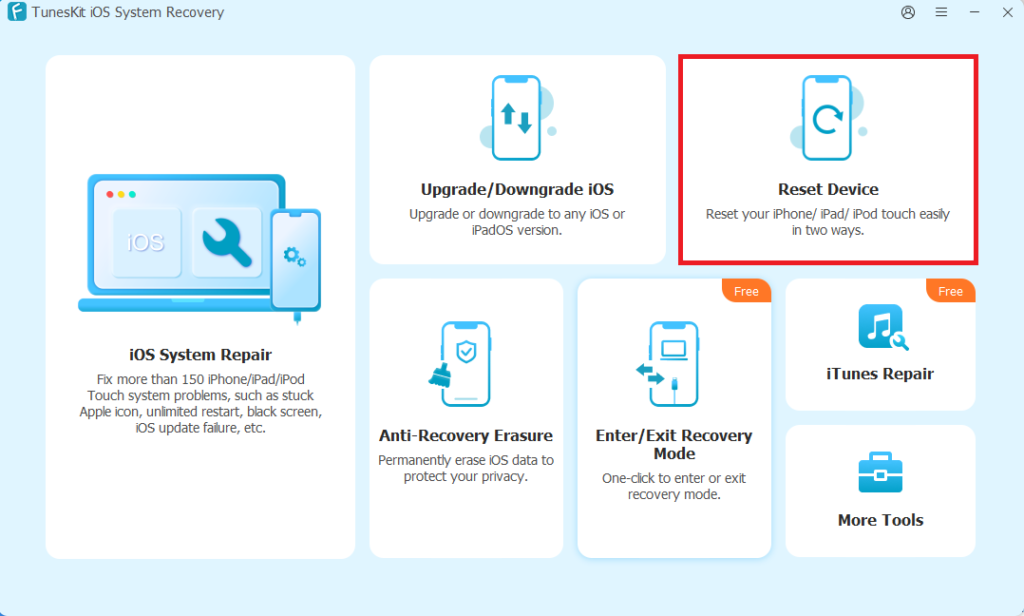
1. Download and install TunesKit iOS System Recovery on your Windows or Mac computer. Launch the program and choose the Reset Device option from the main interface.
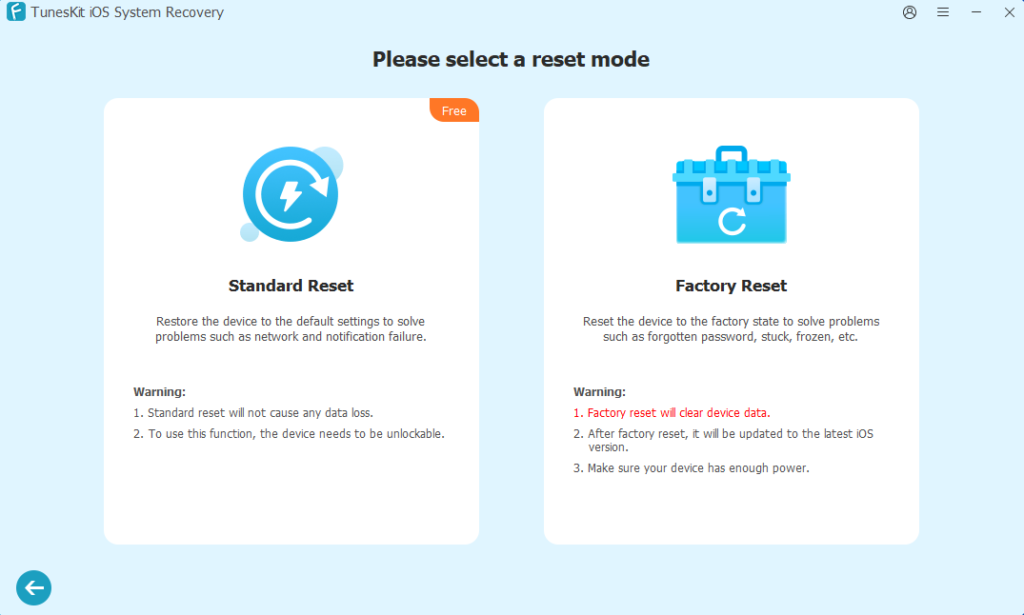
2. Connect your iPad to the computer using a USB cable. Once detected, choose Factory Reset to begin the process.
3. Confirm your iPad information and click Download. TunesKit will download the matching firmware package. After the download is complete, click on the Start Factory Reset button to factory reset your iPad.
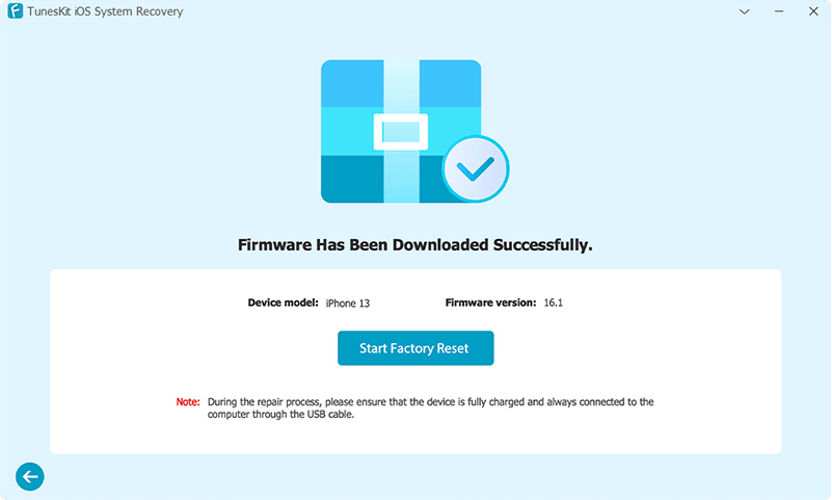
Once the process finishes, your iPad will restart and return to factory settings, allowing you to set it up again.
Method 2: Reset iPad via iTunes or Finder
Resetting your iPad through iTunes or Finder is one of the official methods provided by Apple. It is a good option if you have access to a computer and your device can be recognized by the system. This method reinstalls the operating system and removes the screen passcode.
Steps:
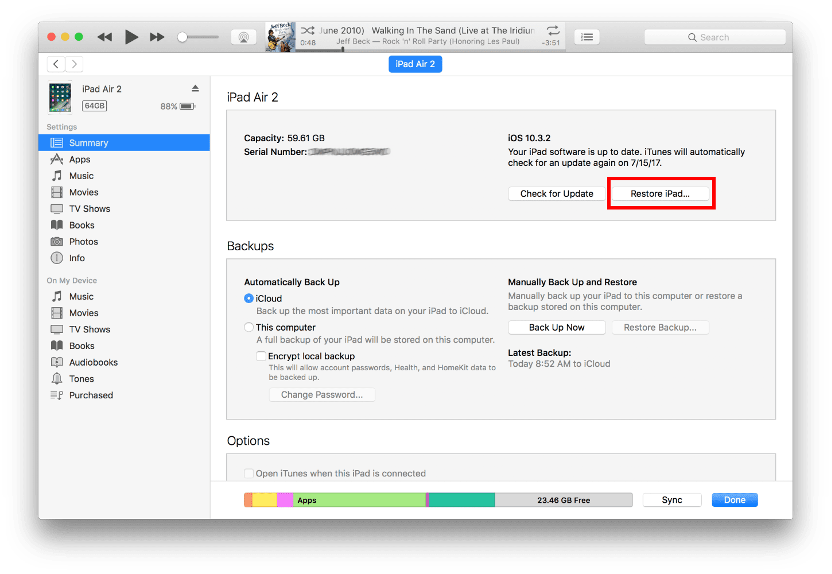
1. Connect your iPad to a computer using a USB cable. Open iTunes if you are using Windows or an older macOS version. Open Finder if you are on macOS Catalina or later.
2. When your iPad is detected, select the device icon from the interface.
3. Click “Restore iPad” and confirm your choice. The system will download the latest iPadOS firmware automatically. Make sure your internet connection is stable during the firmware download to avoid interruptions.
4. Wait for the restore process to complete. Your iPad will reboot and display the setup screen.
Method 3: Use iCloud to Erase iPad
If Find My iPad is enabled and the device is connected to the internet, you can erase it remotely using iCloud. This method is convenient because it does not require a computer and physical access to the device, as long as you have the associated Apple ID.
Steps:
1. Go to the iCloud website on any browser and sign in with the Apple ID linked to the iPad.
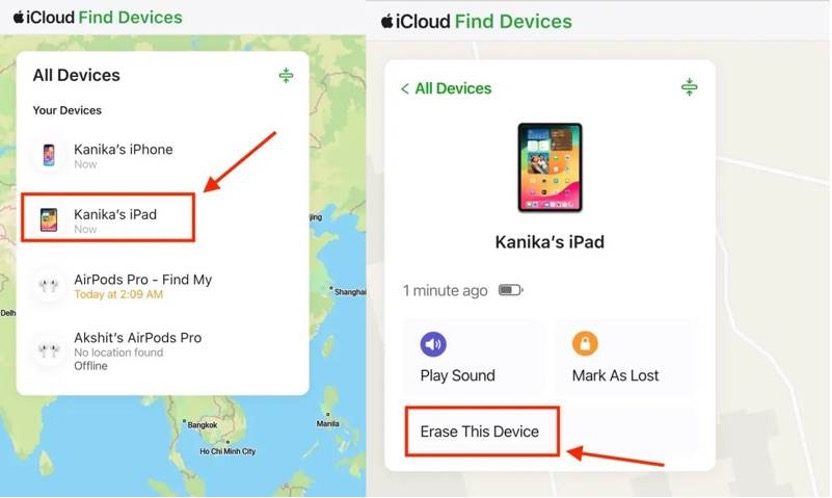
2. Navigate to Find My and click on “All Devices” at the top of the screen.
3. Select your iPad from the list and choose “Erase This Device”.
4. Confirm the action and wait for the device to be erased remotely.
After the process is complete, the iPad will restart and display the setup screen.
Method 4: Reset iPad in Recovery Mode
Recovery Mode is a reliable solution when your iPad is disabled or not responding properly. It forces the iPad to reinstall the operating system and removes the screen passcode. This method is widely used when the device cannot be accessed normally. Although effective, it requires handling of button combinations and a computer connection.
Steps:
1. Connect your iPad to a computer and open iTunes or Finder.
2. Put your iPad into Recovery Mode.
For iPad without a Home button: Press and quickly release the volume up button, then volume down button. Hold the power button until the recovery mode screen appears.
For iPad with a Home button: Press and hold both the home button and power button until the recovery mode screen appears.
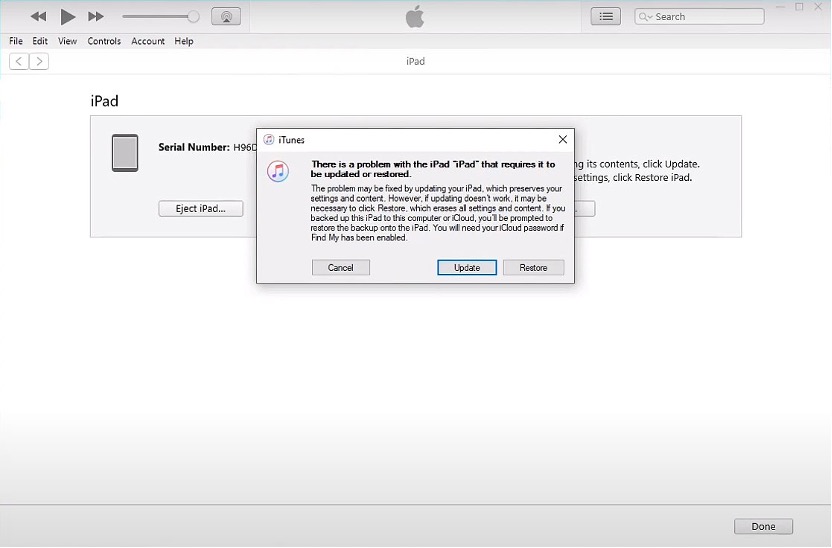
3. When prompted on your computer, choose the “Restore” option.
4. Wait while the system downloads firmware and reinstalls iPadOS. Your device will restart once the process is complete.
What Happens After Factory Resetting an iPad?
After a factory reset, your iPad will return to its original state. All personal data, apps, and settings will be erased. You will need to go through the initial setup process, including connecting to Wi-Fi and signing in with an Apple ID.
If the device is still linked to an Apple account, you may encounter iPad locked to owner after factory reset. This situation needs your Apple ID password to access the device. In cases where you cannot provide the original Apple ID, using a professional tool like TunesKit iPhone Unlocker can help bypass the Activation Lock and allow you to access and set up the device successfully.
FAQs About Factory Reset Locked iPad
1. Can I reset an iPad without Apple ID permanently?
You can reset the iPad without Apple ID using tools or system methods. However, completely removing the Apple ID from the device may require additional steps depending on the situation.
2. Will factory reset remove Activation Lock on iPad?
No, a factory reset does not remove Activation Lock. The lock is linked to the Apple ID and remains active even after the device is erased.
3. Is it possible to reset iPad without a computer?
Yes, but only in limited situations. If Find My is enabled, you can erase the device via iCloud. Otherwise, most methods require a computer.
Conclusion
Factory resetting an iPad without a passcode or Apple ID is possible with the right approach. Each method has its own requirements and limitations, so choosing the right one depends on your specific situation.
For users who prefer a simple and guided process, using a tool like TunesKit iOS System Recovery can save time and reduce complexity. By following the methods outlined in this guide, you can reset your iPad and prepare it for a fresh start.