How to Convert MP4 to Text: 4 Practical Methods
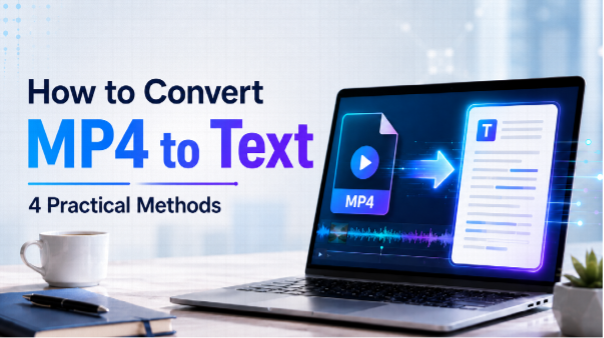
MP4 videos often contain valuable interviews, presentations, meetings, and tutorials. However, finding a specific statement in a recording usually means repeatedly replaying the video and searching through the timeline. A direct MP4-to-text conversion makes it significantly easier to review, quote, organize, or reuse that material without constantly scrubbing through large files.
Most modern transcription tools can process the audio track directly in an MP4 file, so you usually do not need to extract an MP3 before getting started. This guide compares four practical ways to convert MP4 to text: browser-based AI transcription, offline transcription software, YouTube automatic captions, and manual transcription.
How Does MP4-to-Text Conversion Work?
An MP4 file can contain both video and audio tracks. During transcription, speech-to-text software processes the spoken audio in the file, which is why most modern tools can accept an MP4 directly without requiring a separate MP3 conversion.
Depending on the chosen MP4-to-text converter, the result may include an editable transcript, timestamps, and speaker labels. AI-generated text can save time, but users should review names, numbers, technical terms, speaker attribution, and unclear phrases before using the output for quotation, captions, or publication.
The best workflow depends on your recording length, privacy requirements, budget, editing needs, and intended output. An online tool may be the fastest option for a webinar or interview, while offline software can be more suitable for confidential recordings that should remain on a local device.
How to Convert MP4 to Text Online
For many users, online transcription is one of the most direct ways to convert an MP4 file into text. You upload the file directly through a web browser without installing desktop software. An AI MP4-to-text tool automatically handles speech recognition, punctuation, and formatting, making it practical for long interviews, webinars, and tutorials.
For this walkthrough, Hoocs AI serves as a practical example. Users can upload an MP4 file directly from their device or paste a supported media URL to start transcription without downloading the source file first. The platform then generates an editable transcript that can be reviewed in the browser before moving on to further editing or export.
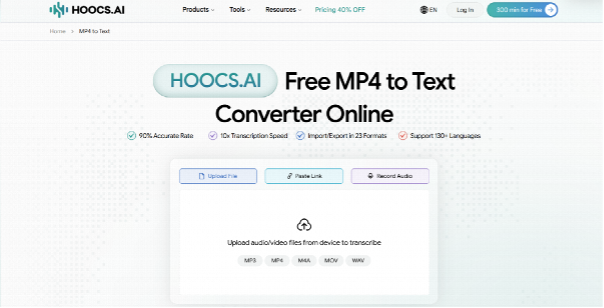
The standard online workflow requires minimal technical setup. Follow these basic steps to convert a raw video file into a structured document ready for specific business or creative needs.
Step 1: Log in or Create an Account
Start by accessing Hoocs AI in your web browser. If you want to convert MP4 to text online for free, new accounts currently receive 300 free transcription minutes. Check the current plan details before processing large projects or recurring recordings.
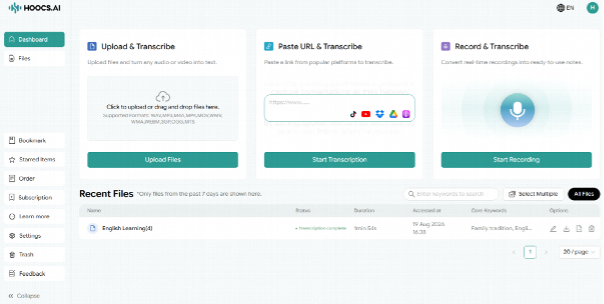
Step 2: Upload Your MP4 File
Navigate to the upload section and select the MP4 file from your local device. Once the file is loaded, it can be sent directly for transcription. Hoocs AI also accepts other common formats such as MOV, WAV, and M4A.
Step 3: Configure Language and Speaker Settings
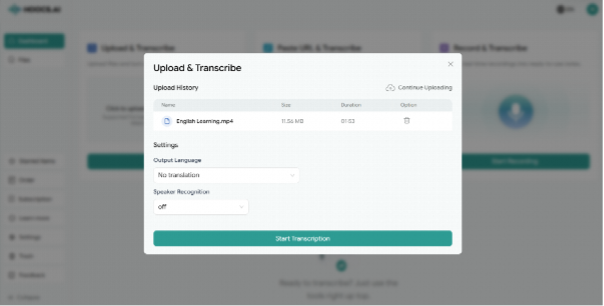
Selecting the correct spoken language can improve transcription results, especially for interviews or multilingual recordings. Hoocs AI supports more than 130 languages, including English, Spanish, French, and Japanese. If your video includes multiple speakers, enable Speaker Recognition to organize the transcript by speaker turns. Review the speaker labels after processing to confirm that they match the conversation.
Step 4: Generate and Review the Transcript
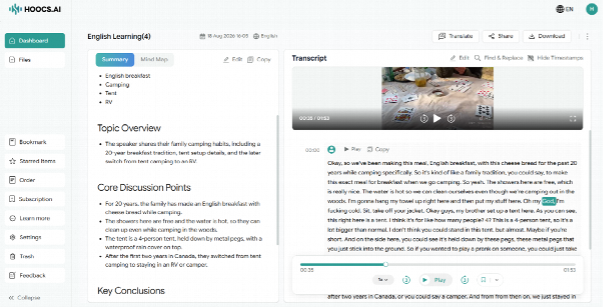
After generation, review the text in the built-in editor. Check people’s names, technical terms, numbers, and unclear phrases before using the text for quotation or publication. For recordings with several speakers, checking the speaker labels helps confirm that dialogue is attributed to the correct person.
Step 5: Edit and Export Your Transcript
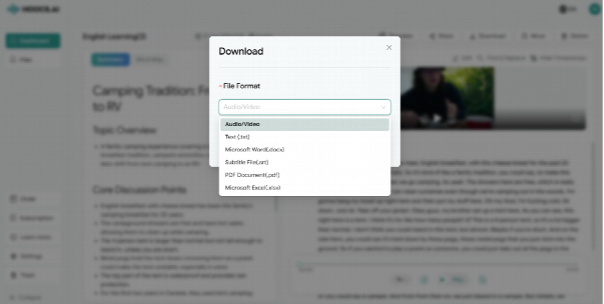
Correct any minor wording issues and finalize the text in the built-in editor. Choose the export format based on your next task. Select TXT for simple notes, DOCX for internal reports, PDF for sharing, or SRT if you need to create video subtitles.
Other Ways to Convert MP4 to Text
Online platforms provide a fast workflow, but they are not the only solution available. Depending on privacy requirements, video length, and available hardware, another approach may be more appropriate. Here are three alternative methods to convert video files into text.
Convert MP4 to Text with Offline Software
Offline transcription software runs speech recognition models directly on your local device. This method keeps your files on your computer without requiring cloud uploads. Because files remain on the local drive, offline transcription may be preferable for confidential interviews, internal company meetings, client recordings, and other privacy-sensitive material.
Offline tools typically require software installation and may require local speech-recognition model downloads. Processing speed depends on your device performance, available storage, and the length of the video, so older hardware may take longer to process large MP4 files.
Use Automatic Captions on YouTube
Uploading a video to YouTube offers another viable transcription path. The video hosting platform automatically generates captions for uploaded videos, which you can review and edit inside the YouTube Studio dashboard. This specific method works well for educational clips or promotional videos already intended for publication on a public channel.
The main limitation is the upload requirement. You must upload the entire MP4 file to their hosting servers before captions can be generated. Users who need a standalone document, formatted text exports, or complex editing may find a dedicated transcription tool more direct. Use this method only when uploading the video to YouTube fits your privacy and publishing requirements.
Transcribe a Short MP4 Manually
Manual transcription involves playing a short video section, pausing the media player, typing out the spoken dialogue, and repeatedly replaying unclear audio segments. Users then proofread the final text against the original video track. This traditional method remains practical for very short clips, capturing specific quotations, or processing brief corporate statements.
The major downside is the time commitment required for the typing task. For longer recordings such as technical webinars, full academic lectures, or extensive client interviews, manually transcribing video is a slow process. Manual transcription is most practical when the recording contains only a few spoken sentences or when exact wording needs close, hands-on review.
The table below summarizes where each method fits best.
| Method | Best For | Main Consideration | Setup Requirement |
| Online AI Transcription | Most MP4 files and longer recordings | Requires a stable internet connection and file upload | Minimal |
| Offline Transcription | Privacy-sensitive recordings and confidential data | Device performance affects processing speed | Requires software installation |
| YouTube Auto-Captions | Videos already intended for YouTube publication | Less flexible for external document workflows | Requires a Google account |
| Manual Transcription | Very short clips and brief quotations | Highly time-consuming for longer video files | None |
What Can You Do With an MP4 Transcript?
An MP4 transcript can be used for more than reviewing spoken content. Once the text is available, it can support content production, documentation, accessibility, and localization across different types of video.
Create Captions and Subtitles
A transcript forms the foundation for professional video subtitles. By exporting the finalized text as an SRT file, you can upload captions alongside tutorials, interviews, and social media videos. This step improves accessibility for viewers who rely on subtitles or watch without sound in public environments.
Turn Recordings Into Written Notes
Long formats like meetings, lectures, and webinars contain dense information. A text version allows you to organize these recordings into structured notes, executive summaries, or written research materials. A transcript can make it easier to locate a specific technical reference than replaying an entire recording.
Repurpose Video Into New Content
Marketing and content teams frequently use text to extend the use of a video asset. You can easily adapt a recorded interview into a draft for a blog post, pull out interesting quotes for social media captions, or build a detailed newsletter. Working directly from text simplifies the drafting process across channels.
Translate and Localize Transcripts
A clean transcript can provide source material for translation and subtitle localization. Teams can use the written dialogue to prepare multilingual subtitles, translated documentation, international press materials, or localized content for audiences in different markets.
Frequently Asked Questions About MP4 to Text
Do I need to convert MP4 to MP3 before transcription?
Generally, no. Modern transcription tools read the audio track directly from within the MP4 container. You usually only need to extract an MP3 or M4A file if the original video exceeds platform upload limits, or if a specific software application accepts audio formats only.
Can I convert MP4 to text for free?
Some tools provide a free tier, trial, or limited minutes for testing. However, completely free platforms often place restrictions on file duration, monthly usage, or export formats. If you want to try a free option, Hoocs AI offers 300 free transcription minutes for new accounts to evaluate the platform.
How long does MP4-to-text conversion take?
Processing time depends on video length, upload speed, audio quality, language, number of speakers, and the transcription tool you use. AI transcription can often create a draft faster than manual typing, but you should allow additional time to review names, numbers, speaker labels, timestamps, and unclear sections.
What if my MP4 file is too large?
If your video exceeds standard platform upload limits, you have a few options. You can compress the video, split the recording into smaller parts, or extract the audio track to reduce file size. Check the transcription platform’s current file-size and duration limits before uploading large recordings.
Conclusion
Converting MP4 to text can turn spoken content in a video into a reviewable transcript that is easier to organize, quote, repurpose, or turn into subtitles. While online AI transcription is the most direct method for most users, alternative approaches such as offline software, YouTube captions, and manual typing remain valid for specific privacy needs or extremely short clips.
Ultimately, the best method depends heavily on your video length and final project goals. For users who want to upload an MP4 directly, review the generated text in their browser, and export the exact format needed for different professional tasks, Hoocs AI provides one straightforward option to streamline your transcription workflow.