
I Used IObit Uninstaller to Wipe Residual Folders and Hidden Registry Entries After a Bad Uninstall
I downloaded a program for my PC that refused to uninstall itself. Clicking uninstall, it appeared to work, but folders remained, and registry entries littered my system. I gave IObit Uninstaller a try, and it may have just saved me a weekend.
Initial Problem
I had installed a trial program some months back, and when it came time to remove it, I deleted the leftover folders it said it used. The typical uninstall through Windows left some folders in Program Files, shortcuts all over my desktop and start menu, and registry keys with nowhere to point. I had performed Windows’ default uninstallation dozens of times only to be left with remnants like these. This time around, I wanted the program completely removed.
IObit Uninstaller to The Rescue?

A buddy of mine who does computer repair and IT services for small business rentals told me about the software. Supposedly it tackles difficult programs that give users grief when you try to delete them the regular way, so I figured I had nothing to lose. It’s free, unlike other cleanup tools that try to sell you the full version after a breeze through test.
Installation
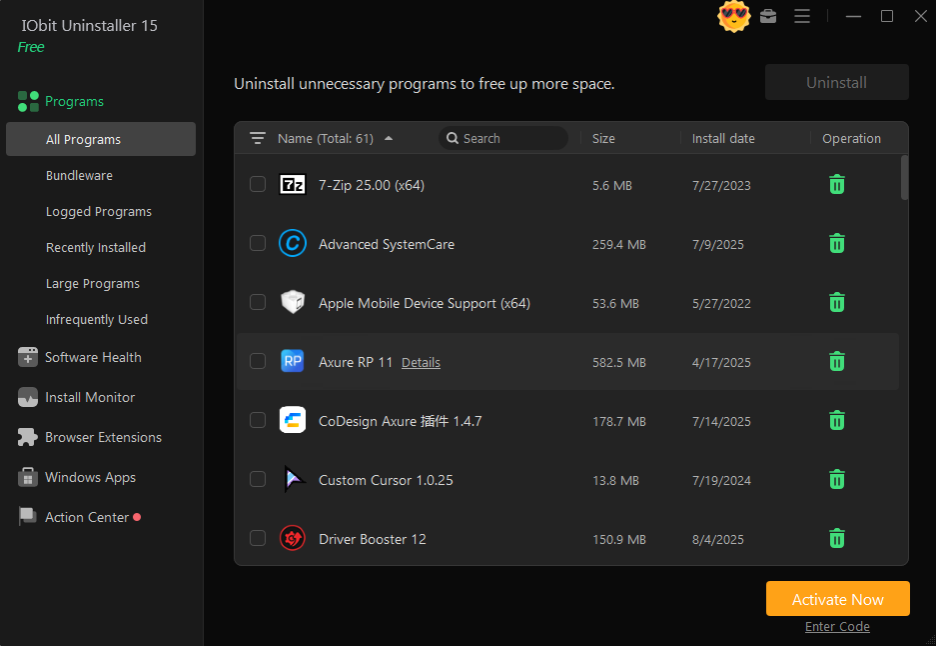
The install process was painless and quick. When the app opened for the first time, the layout wasn’t overwhelming. I liked how it didn’t throw a ton of buttons at me that I would never need. One button did all the work to scan my PC and then displayed a list of every program I had installed. Some I didn’t even know I had! It even highlighted programs labeled as bundled software. If you’re unfamiliar, those are the programs that install with others without permission.
Finding leftover folders/junk

I searched for the program I initially started the entire ordeal with. Sure enough, it showed up on their list of residual files even though I’d uninstalled it (in Windows) weeks prior. Basically, what their uninstaller does is scan for leftover files similar to what I found poking around manually on my own computer.
IObit will search through every nook and cranny of your registry, folders, and programs that have been installed to give you options to remove leftover keys and folders that other programs miss or don’t bother to look for. I found folders I didn’t even know existed, buried under three other folders on my computer, along with registry entries Windows didn’t clean up on its own.
Performing a scan
After hitting next, it sorted everything by leftover folders, registry keys, and startup entries related to the program I selected. There was nothing hidden from me or nested under complicated menus. I could plainly see everything it was going to delete before I authorized it. That last part is important to me. Some apps go ahead and delete everything first, then show you what was deleted.
Software That Refused To Uninstall
There was another bonus uninstaller for Windows I found while digging through installed software on my computer. There was an old security program I had downloaded when my laptop had issues a year ago that refused to uninstall the regular way. Every time I tried Windows’ uninstall process, it gave me an error and asked me to try again after restarting. With this tool, I ran the program through their list of stubborn programs–thousands are included by default–and it found it!
What Force Uninstall does
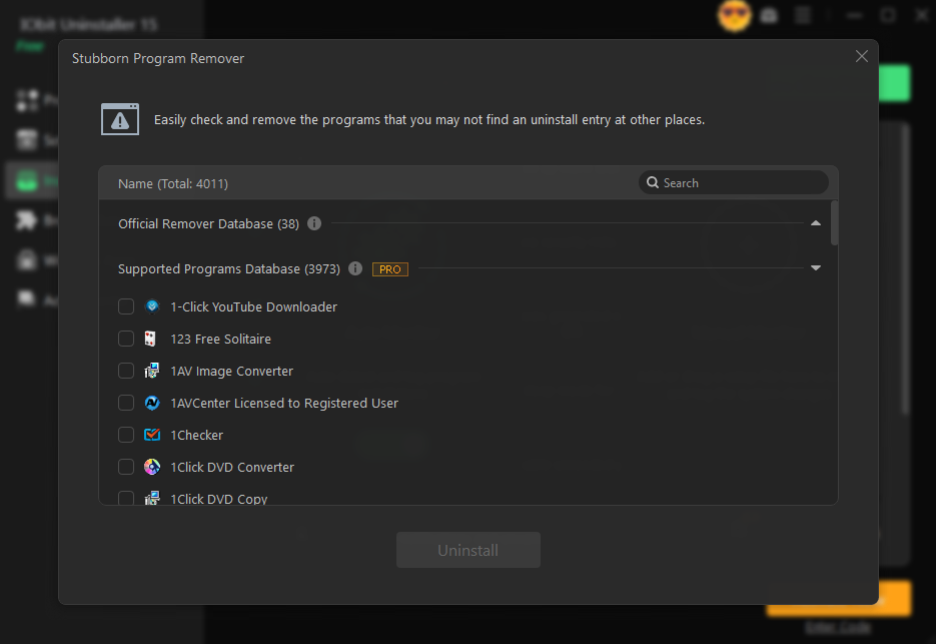
As you can probably guess by now, Force Uninstall allows you to delete programs that may be missing their uninstaller shortcut. Rather than digging through the registry and googling how to manually uninstall stuff as I have in the past, I selected the program and found all of its related files.
Double-checking the registry after uninstall
I will admit, I’ve had horror stories with registry cleaners that promise to make your PC run like new but end up deleting things that were working perfectly fine. I went through and manually checked my registry after using this to uninstall both of these programs. The specific keys tied to the programs I selected were removed, and nothing else seemed disturbed.
Compare to doing it manually
I used to dive into forums and find random tools that claimed to uninstall programs and clean out your registry in one easy click. I ended up downloading dozens of programs that all promised the same thing, but none of them were capable of removing the specific program I had wanted to delete. With IObit Uninstaller, it found every trace of my troublesome programs left behind without me having to go into the Registry Editor and mess around myself.
Extensions I forgot I installed
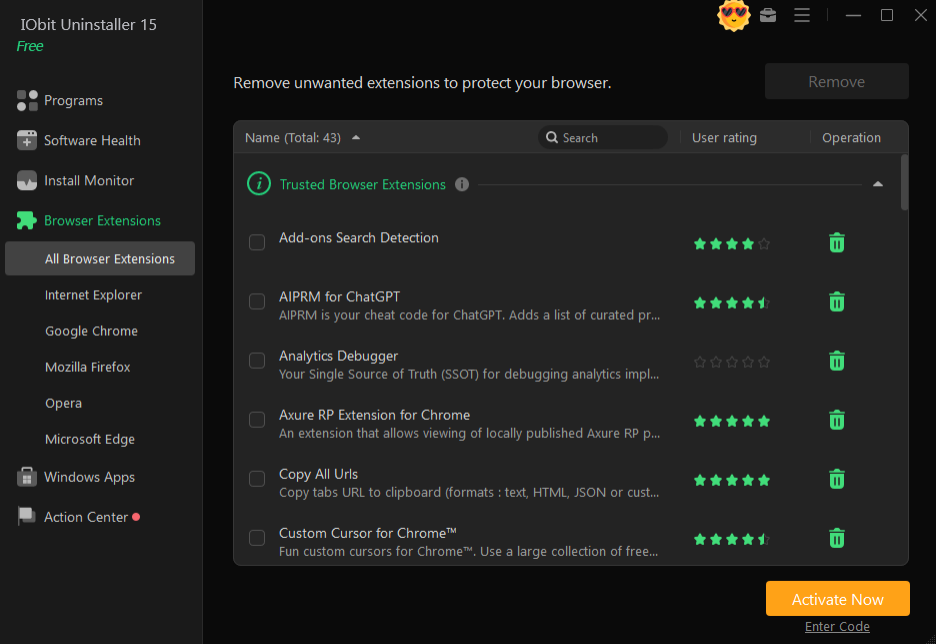
IObit Uninstaller also picks up browser plugins and extensions. Now mind you I clean my computer pretty well, but I did have two extensions show up that were installed with programs I had long since removed. Now this wasn’t the reason I downloaded this software, but it was a nice addition to a tool I was googling anyway.
Final Thoughts
I ran this program on my computer for three or four days, trying it out on new installations and uninstalling programs that gave me grief every other way I tried. If you have downloaded software that just won’t completely leave your PC alone, I highly recommend giving IObit Uninstaller a try.